Microsoft Copilot vs. ChatGPT Plus for Excel Users: Which Is Better for Finance?
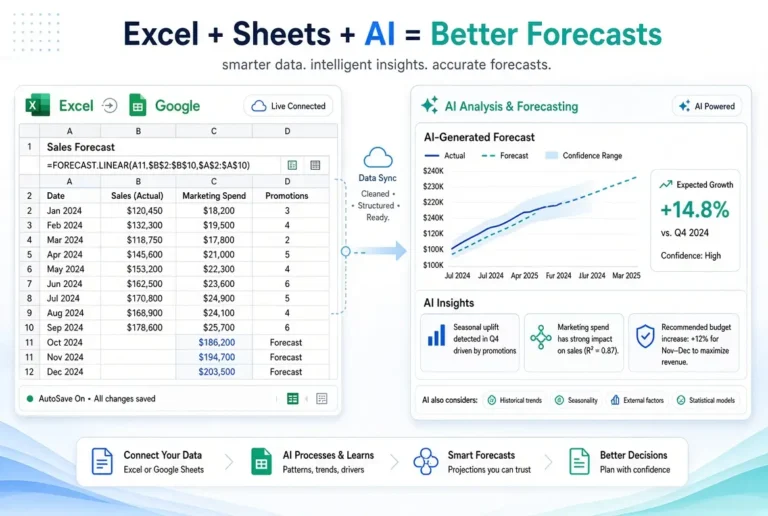
If you spend half your week inside Excel, choosing the right AI assistant comes down to one practical question: Do you want AI built directly inside your spreadsheet grid, or a smarter AI analyst sitting in a browser tab next to it?
On paper, Microsoft Copilot for Microsoft 365 looks like the obvious winner for finance and accounting teams. It lives inside Excel, understands your workbook context, and inherits your company’s Microsoft security permissions. Meanwhile, ChatGPT Plus requires you to export or copy-paste your spreadsheet data into a separate window—yet many analysts still prefer it for heavy data cleaning and complex modeling.
To see which tool actually saves more time without breaking spreadsheets, we tested both head-to-head on three real-world finance tasks: writing complex nested formulas, cleaning messy 1,000-row expense exports, and summarizing Budget vs. Actuals tables.
Quick Verdict: Side-by-Side Comparison
| Feature | Microsoft Copilot (in Excel) | ChatGPT Plus (with Data Analysis) |
|---|---|---|
| Pricing | ~$30/user/month (billed annually, requires qualifying Microsoft 365 business plan) | $20/month (or $25–$30/user/month on ChatGPT Team) |
| Workflow Integration | Native. Lives in the Excel right-hand sidebar; edits cells and adds columns directly. | External. Requires uploading .xlsx/.csv files or copy-pasting data into a browser. |
| Prerequisite Setup | Strict. Data must be formatted as an official Excel Table (Ctrl + T) and saved to OneDrive/SharePoint. | Flexible. Accepts messy .xlsx workbooks, .csv exports, and raw copy-pasted text immediately. |
| Formula Generation | Good for standard XLOOKUP, SUMIFS, and basic conditional columns. | Superior. Handles complex multi-nested formulas and explains logic step-by-step. |
| Data Cleaning & Python Sandbox | Includes Python in Excel integration, though prompts can feel rigid on messy text. | Best-in-class. Runs Python in the background automatically to clean, merge, and deduplicate files. |
| Enterprise IT & Security | Easiest IT approval. Stays inside your existing Microsoft 365 tenant compliance boundary. | Requires opting out of model training (Plus) or upgrading to a Team/Enterprise workspace. |
The Bottom Line: Choose Microsoft Copilot if your IT department forbids uploading spreadsheets to external websites and you want quick, in-grid formula help and chart creation. Choose ChatGPT Plus (or Team) if you regularly clean messy CSV exports, debug multi-sheet errors, or want sharper executive commentary.
Test 1: Writing Complex Nested Formulas & Lookups
The Challenge: We asked both tools to write a dynamic tiered commission formula and a multi-criteria XLOOKUP across two tabs—matching a Vendor ID and Invoice Month against an approved budget table while wrapping errors cleanly in IFERROR.
How Microsoft Copilot Performed
Copilot excels when your data is already structured inside a single Excel Table. When we typed “Add a column that calculates a tiered commission: 0% up to $10,000, 5% from $10,001 to $50,000, and 8% above $50,000,” Copilot generated the formula, previewed the new column, and inserted it into the table with one click.
However, Copilot struggled when referencing ranges outside the active table or across multiple legacy tabs that weren’t formatted as official Excel Tables.
How ChatGPT Plus Performed
ChatGPT Plus nailed both the marginal tiered formula and the two-criteria XLOOKUP on the first try. Even better, when we deliberately broke the formula to simulate a #VALUE! error caused by numbers stored as text, ChatGPT diagnosed the formatting mismatch immediately and provided a wrapped VALUE() fix.
- Winner: ChatGPT Plus for complex, multi-tab formula logic and error debugging; Copilot for one-click formula column insertion inside a single table.
Test 2: Cleaning & Standardizing 1,000 Rows of Messy Expense Data
The Challenge: We fed both tools a 1,000-row corporate card export containing inconsistent vendor strings (AMZN MKTP US*2K9, Amazon.com*1B4, AMAZON WEB SERVICES), mixed date formats, and uncategorized memos, asking them to standardize vendor names and assign General Ledger accounts.
How Microsoft Copilot Performed
Before Copilot could even begin, we had to save the local .csv file as an .xlsx workbook, upload it to OneDrive, turn on AutoSave, and convert the range into an official Excel Table (Ctrl + T). Once inside, Copilot handled basic text splitting and date standardization well, though fuzzy vendor grouping across 1,000 rows occasionally timed out or required breaking the prompt into smaller steps.
How ChatGPT Plus Performed
We dragged the raw .csv file directly into ChatGPT Plus without any prep work. Using its built-in data analysis environment, ChatGPT inspected the columns, standardized 96% of the vendor variations accurately, mapped each row to our Chart of Accounts, and gave us a downloadable, cleaned .xlsx file in under 45 seconds.
- Winner: ChatGPT Plus. For raw CSV cleanup and bulk categorization, skipping the OneDrive + Excel Table setup saves significant friction.
Test 3: Variance Analysis & Executive Commentary
The Challenge: Using a 45-row departmental Budget vs. Actuals summary, we asked both tools to identify all variances exceeding $2,500 or 10%, rank them by unfavorable dollar impact, and draft a 4-bullet executive summary for a leadership packet.
How Microsoft Copilot Performed
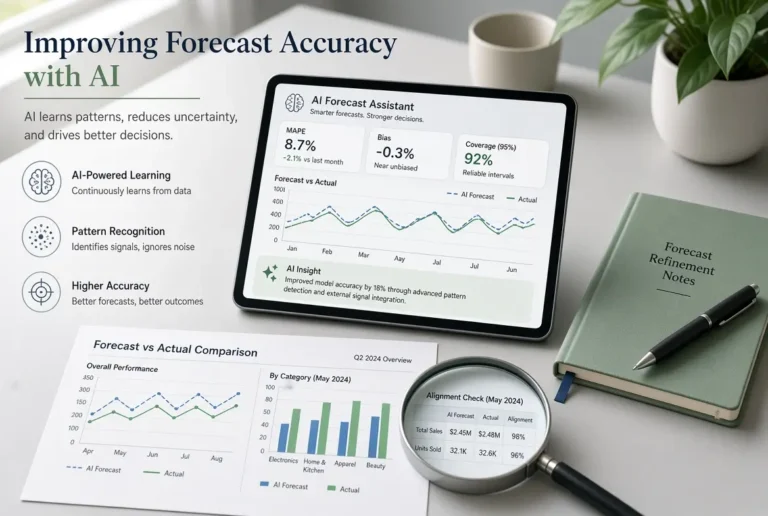
Copilot quickly generated a PivotTable and a clean bar chart highlighting the largest departmental variances right inside our workbook. Its written summary was accurate on the numbers, though the commentary read a bit mechanically—restating the table figures rather than synthesizing the operational story.
How ChatGPT Plus Performed
When given the same anonymized summary table, ChatGPT Plus produced noticeably sharper, board-ready commentary. It grouped related overspends logically, distinguished between one-time timing shifts and ongoing run-rate increases, and followed strict word-count limits without filler.
- Winner: ChatGPT Plus for executive narrative and commentary; Copilot for instant in-sheet PivotTables and charts.
Cost vs. Security: Which One Will Your IT Team Approve?
For finance and accounting teams, feature quality only matters if your IT and compliance teams actually let you use the tool.
When Microsoft Copilot Wins on Compliance
If you work at a mid-sized or enterprise organization already running Microsoft 365, Copilot is the path of least resistance. Because Copilot operates within your existing Microsoft tenant, your financial spreadsheets are never used to train foundation models, and existing role-based access controls remain intact. You don’t have to worry about staff accidentally pasting payroll data into a public browser tab.
How to Use ChatGPT Safely in Finance
If you opt for ChatGPT, do not use the free tier for work spreadsheets.
- On ChatGPT Plus ($20/mo): You must manually go to Settings → Data Controls and toggle off “Improve the model for everyone,” and you should still anonymize client, vendor, and employee names before uploading files.
- On ChatGPT Team ($25–$30/user/mo): OpenAI excludes workspace data from model training by default, making it much easier to get approval from small-business owners and fractional CFOs.
Final Recommendation: Which Should You Choose?
You don’t necessarily have to be a tech expert to pick the right setup—match the tool to your daily bottleneck:
- Buy Microsoft Copilot if: You work inside a corporate Microsoft 365 environment, need fast IT security sign-off, and want an assistant that builds PivotTables, charts, and formula columns directly inside OneDrive-hosted Excel workbooks.
- Buy ChatGPT Plus (or Team) if: You are a bookkeeper, controller, fractional CFO, or analyst who spends hours cleaning messy CSV exports, debugging broken formulas across legacy workbooks, and writing monthly variance commentary.
- The Power-User Combo: Many finance professionals use Copilot for quick in-grid formatting and charts on live company workbooks, while keeping ChatGPT Team (or Claude) open for heavy formula debugging and anonymized executive summaries.
Continue the Finance AI Series
- Previous Guide: How to Automate Monthly Variance Analysis in Excel Using AI (No Coding Required)
- Up Next: Is It Safe to Upload Financial Spreadsheets to ChatGPT or Claude? (2026 Guide)