Combining Excel/Google Sheets with AI for Better Forecasts (2026)
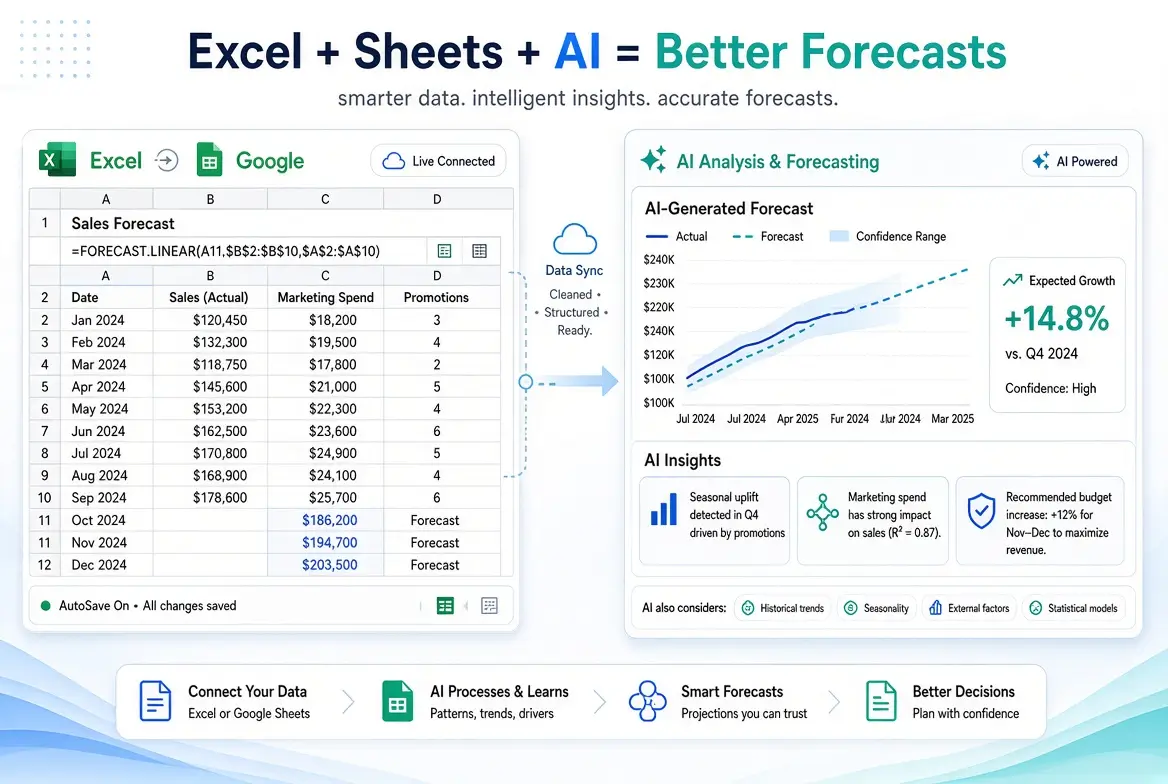
One of the biggest mistakes I see non-technical professionals make with AI is trying to replace spreadsheets entirely. In practice, the best results usually come from combining both.
AI is excellent at structuring, analyzing, explaining, and stress-testing financial information. Excel and Google Sheets remain the best places to store living numbers, update actuals, and maintain a transparent forecast you control.
This guide explains a practical way to combine AI with spreadsheets for better budgeting and forecasting, based on methods that consistently work for non-technical users.
Why Spreadsheets Still Matter
Despite all the progress in AI tools, spreadsheets still provide:
- Full transparency into every number
- Easy monthly or weekly updates
- Familiarity for most professionals
- Flexibility without locked-in workflows
- A clear audit trail of changes
AI outputs are often polished, but they can also hide assumptions. A spreadsheet keeps those assumptions visible.
Why AI Makes Spreadsheets More Powerful
On their own, spreadsheets can become time-consuming and static. AI helps by:
- Generating clean forecast structures quickly
- Suggesting formulas and category organization
- Analyzing variances between forecast and actuals
- Creating scenario versions faster
- Turning raw numbers into clear commentary for stakeholders
The combination gives you speed and control.
A Practical Workflow That Works
This is the process I recommend most often for combining Excel Google Sheets with AI for forecasts.
Step 1: Build the Structure with AI
Start by asking AI to create a clear forecast framework.
Prompt example:
Create a clean 12-month forecast template for a [type of business] that I can copy into Google Sheets or Excel.

Include:
- Revenue
- Direct costs (if relevant)
- Operating expenses by category
- Operating income
- A section for assumptions

Use simple headers and a layout that is easy to update monthly.
Then paste the structure into your spreadsheet.
Step 2: Add Real Data in the Spreadsheet
Enter:
- Historical actuals
- Confirmed upcoming numbers
- Your best current estimates
Keep AI-generated placeholder numbers only until real data is available.
Step 3: Use AI for Analysis, Not as the System of Record
Once your spreadsheet contains real figures, bring summaries back into AI for interpretation.
Prompt example:
Here is my current forecast summary and the latest actual results:

[Paste]

Analyze the variance, identify the biggest risks, and suggest what I should adjust in next month’s forecast.
Step 4: Update on a Regular Schedule
The spreadsheet remains the living document. AI supports each update by helping you interpret changes and refine assumptions.
Personal Insight: The Spreadsheet Should Stay “Boring”
After observing many implementations, one pattern is clear: the most successful users keep their spreadsheet deliberately simple. They resist the urge to build highly complex models.
A clean, understandable sheet that is updated consistently outperforms a sophisticated model that only one person understands. AI is then used as the flexible thinking layer on top of that stable base.
The Non-Tech AI Case Example
A small agency owner had been creating forecasts directly in ChatGPT and copying the results into emails. The numbers looked good, but tracking changes over time was difficult.
We moved the forecast into Google Sheets, used AI only to generate the initial structure and monthly variance commentary, and set a recurring monthly review. Within two cycles, the owner could clearly see which assumptions were repeatedly wrong and adjust them. The improvement came not from better AI prompts alone, but from giving the process a stable home in a spreadsheet.
Best Practices for Combining AI and Spreadsheets
- Keep one master forecast file
- Separate actuals from forecast columns
- Document key assumptions in the sheet
- Use AI for first drafts, reviews, and explanations
- Avoid pasting sensitive full data exports when unnecessary
- Version your forecasts (monthly snapshots help learning)
Recommended Free Stack
- Google Sheets or Excel Online
- ChatGPT or Claude free tier
- Optional: lightweight charting inside the spreadsheet for visibility
This stack is sufficient for most individuals and small teams.
Mistakes to Avoid When Combining Excel Google Sheets with AI
- Letting AI-generated forecasts live only in chat history
- Overcomplicating the spreadsheet with too many categories too soon
- Updating AI outputs without updating the sheet
- Treating AI commentary as factual without checking the numbers
- Building multiple disconnected forecast files
When to Add More Tools Later
You may eventually want dedicated forecasting software if:
- Multiple people need shared ownership
- Your model becomes highly complex
- You need deeper integrations with accounting systems
Until then, the AI + spreadsheet combination remains one of the highest-value, lowest-friction approaches available.
How This Fits Into Your Financial System
This method supports every major part of practical financial planning:
- Budgeting
- Cash flow forecasting
- Rolling forecasts
- Scenario planning
- Accuracy improvement over time
For the complete framework, see the main pillar guide:
AI to Manage Budgets Forecasts and Cash Flows
Related articles:
- Free AI Budgeting Tools
- Build Rolling Forecasts with AI
- Improve Small Business Forecast Accuracy with AI
- Free AI Tools for Cash Flow Forecasting
Final Thoughts
AI and spreadsheets are not competitors. Used together, they create a practical system that is faster than manual forecasting and more controlled than chat-only workflows.
If you want better forecasts without losing transparency, keep your numbers in Excel or Google Sheets and use AI as the assistant that helps you structure, review, and improve them. That combination is simple, sustainable, and highly effective for non-technical professionals.
Frequently Asked Questions
No. Use AI to help create and analyze the forecast, but keep the living version in a spreadsheet.
Both work well. Choose the one you are already comfortable using and can access consistently.
Yes. AI can suggest formulas, but you should verify them before relying on the results.
Monthly works well for most users. Weekly is better when cash flow is tight or conditions change quickly.
Yes. Many small businesses can run strong forecasting processes with nothing more than a spreadsheet and a capable AI assistant.