“Just Following Up”: Automate Project Management Follow-Ups Without Being Annoying, or Sounding Passive-Aggressive.
“Just Following Up” is perhaps the most dreaded phrase in the modern workspace. For non-technical project managers (PMs), it represents a constant, exhausting loop: tracking tasks, checking in on delayed deliverables, and trying to nudge team members without sounding passive-aggressive.
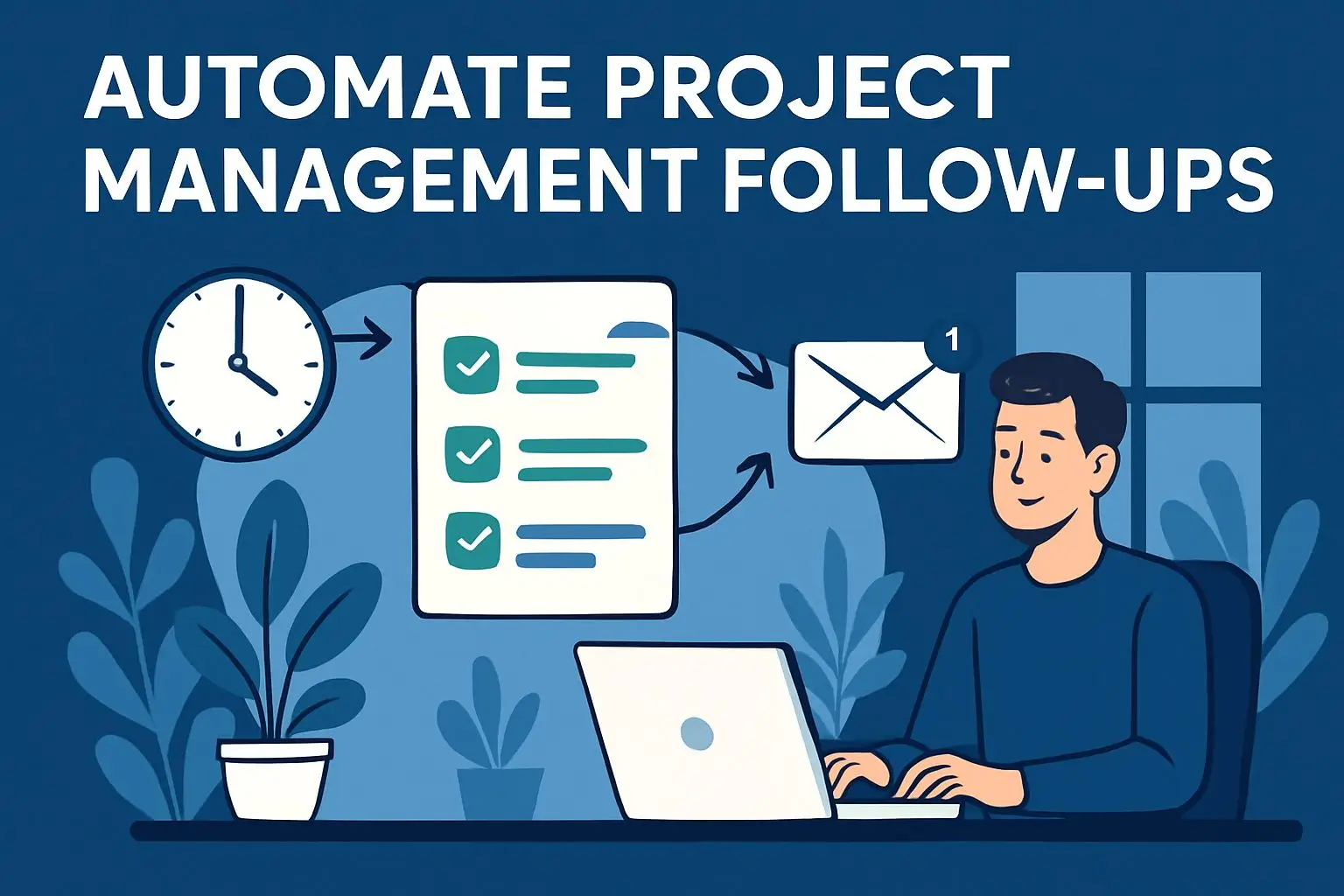
In the era of remote work and digital fatigue, sending manual “just checking in” pings is a productivity killer. It wastes your time and creates unnecessary friction. By leveraging simple, non-technical artificial intelligence (AI) and automation tools, you can transform your follow-up workflow from a manual chore into a seamless, objective, automated system.
The Cost of Manual Chasing in Project Management
When a project manager spends hours a week hunting down status updates, it signals a systemic workflow issue.
- The “Nag” Fatigue: Constant manual pings strain professional relationships, making the PM look like a bottleneck or a micromanager rather than a facilitator.
- Information Silos: Manual follow-ups usually happen over isolated direct messages (Slack, Teams) or fragmented email threads, keeping critical status updates hidden from other stakeholders.
- Context Switching: Every time you stop your core workflow to write a “quick reminder,” you break your focus, leading to a massive drop in cognitive productivity.
3 Non-Technical Ways to Automate Your Follow-Ups
You don’t need to know how to code to set up automated, intelligent reminder ecosystems. Modern project management systems and AI tools can do the heavy lifting for you.
1. Let the Machine Be the “Bad Guy”
People rarely get offended by an automated system notification, but they often feel micromanaged by a manual ping. Use your project management tool’s native automation (like Asana Rules, ClickUp Automations, or Monday.com Recipes) to handle routine deadlines.
- The Rule: If a task is due in 24 hours and the status is not “In Review,” trigger a notification.
- The Benefit: The reminder becomes an objective operational standard rather than a personal nudge from management.
2. Connect Your Stack with No-Code AI Triggers
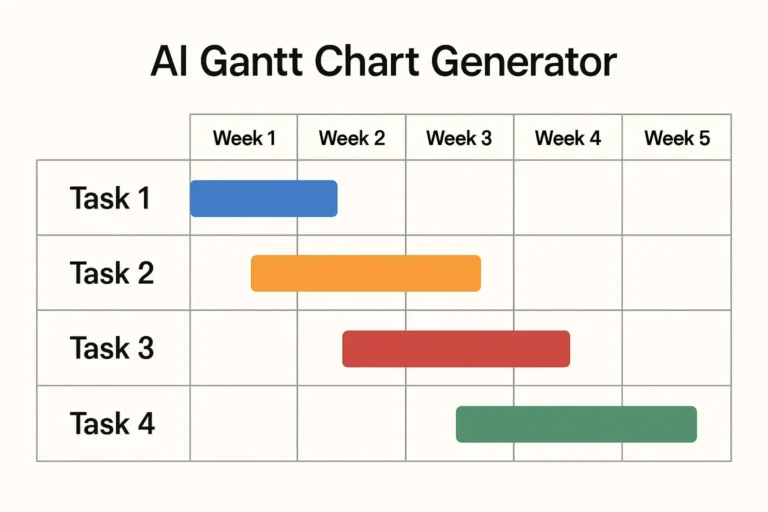
If your team works across multiple apps (e.g., tracking tasks in Trello but communicating via Slack), use a no-code integrator like Zapier or Make paired with an AI module, such as an AI Gantt Chart Generator.
- The Workflow: Create a “Zap” that scans overdue spreadsheet rows or Kanban cards.
- The AI Twist: Pass the overdue task details through a basic OpenAI prompt template (e.g., “Write a friendly, encouraging 2-sentence Slack reminder for [Name] about [Task]”).
- The Result: Zapier drops a personalized, perfectly toned notification directly to the team member automatically.
3. Deploy “Smart Dashboards” Instead of Pings
Shift your project culture from a “push” model (you chasing them) to a “pull” model (everyone looking at a shared source of truth).
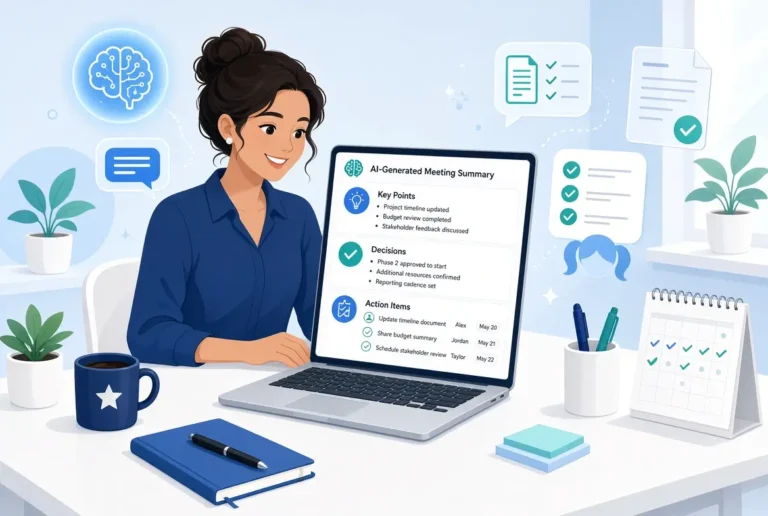
Set up automated daily digest summaries using AI project tools like Notion AI or Basecamp. An AI-generated morning digest can automatically ping a shared channel with a list of “Tasks Needing Attention Today,” completely removing the need for a PM to type out individual messages.
How to Set Up Automated Reminders in Asana (Step-by-Step)
Your co-workers may not get annoyed by automated system notifications, but they might feel micromanaged by manual pings and nudges. Letting the software act as the objective tracker shifts accountability to the system.
Here is how to set up an automated due-date warning using Asana Rules:
- Open your project board in Asana and click the Customize button in the top right corner.
- Select Rules, then click Add rule and choose Create custom rule.
- Set the Trigger: Select Due date is approaching $\rightarrow$ Choose 1 day before.
- Set the Condition (Optional): Add a condition where Task Progress is NOT Complete.
- Set the Action: Select Send comment. In the text box, write an objective template:“Hi {Task Assignee}, this task is due tomorrow. Please update the status or adjust the timeline if blockers have come up!”
- Click Publish Rule. Asana will now automatically run this safety net in the background.
(Note: If you use Monday.com, you can achieve the exact same result by clicking Automations $\rightarrow$ Add New Automation $\rightarrow$ choosing the template: “When date arrives and status is not something, send a notification to assignee.”)
How to Build an AI-Powered Slack Reminder using Zapier and OpenAI
If your team works across multiple apps, like tracking tasks in a spreadsheet or database but communicating via Slack, you can use a no-code integrator like Zapier paired with OpenAI to deliver friendly, dynamically generated notifications.
Here is how to build it:
How to Automate Project Management Follow Ups Using Zapier and OpenAI.
- Create a New Zap
Set your Trigger to your task app (e.g., Google Sheets – New or Updated Row or Trello – Card Overdue).
- Add an Action Step (OpenAI)
Choose the OpenAI integration and select the action Send Prompt
- Configure the AI Prompt
Connect your OpenAI account and input the following prompt template into the prompt field, mapping the variables from your trigger step:
"Write a friendly, empathetic, 2-sentence Slack reminder for {{Assignee Name}} about their task: '{{Task Name}}', which was due on {{Due Date}}. Offer them support if they are blocked. Do not use the phrases 'just following up' or 'per my last email'." - Add a Final Action Step (Slack)
Select Slack – Send Channel or Direct Message.
- Map the Response
In the Slack Message Text field, select the dynamic text output generated by the OpenAI step.
- Test and Turn On
Test the workflow to ensure the tone hits the right note, then toggle the Zap to active.
Best Practices for Writing Automated Follow-Up Prompts
If you prefer to generate your templates manually using tools like ChatGPT or Claude, the secret lies in your prompt framing. To ensure your automated nudges stay supportive and professional, use this baseline framework to automate project management follow ups:
"Act as an empathetic but results-driven project manager. Draft a short reminder to a team member for an overdue marketing report. The tone must be supportive, offering help to unblock them, while clearly restating the importance of the deadline. Avoid corporate clichés."Manual vs. Automated Communication Comparison
| Scenario | The Old Way (Passive-Aggressive) | The AI/Automated Way (Objective & Helpful) |
|---|---|---|
| Overdue Task | “Just following up on this. Any update? We really need it today.” | [System Auto-Ping]: “Hi [Name], this task is past its target date. Let the team know if you need support or a timeline adjustment!” |
| Missing Sign-off | “Did you get a chance to look at the draft I sent on Tuesday?” | [Slack Bot]: “Weekly review digest: 2 items are awaiting your approval to unblock the design team.” |
As you can see, when you automate project management follow-ups, your team communications now sound less passive-aggressive and more objective.
Cultural Best Practices for Automated Reminders
Automation only works if the team respects the system. To make this transition successful, establish these boundaries:
- Agree on the “Rules of Engagement”: Explicitly tell your team: “The system will automatically ping you when a deadline is missed. This isn’t me breathing down your neck, it’s just our collective safety net.”
- Normalize Changing Dates: Encourage team members to proactively update due dates. If an automated system sees a realistic, updated date, it won’t trigger an unnecessary reminder.
- Keep the Human Touch for Escalations: Save your actual personal messages for when things are truly stuck. If a teammate hasn’t responded to two system notifications, that is your cue to schedule a quick 1-on-1 coffee chat to see how they are doing, not send another digital ping.
Final Thoughts
By automating your follow-ups, you aren’t removing the human element from project management. Instead, you are clearing away the digital noise so that your real human interactions can focus on problem-solving, mentoring, and strategic alignment. Stop chasing; start automating.
Frequently Asked Questions
To politely follow up on a project, keep the message focused on collaboration rather than blame. State the current status objectively, explain why the deliverable is needed to unblock the team, and explicitly offer your support or a timeline adjustment if they are facing a hurdle.
Instead of using overused corporate clichés, try these alternative phrases depending on the context:
“I’m checking in to see if you need any resources to clear this blocker.”
“When you have a moment, could you update the status of this milestone on our board?”
“To keep our target launch on track, let me know if we need to adjust this deadline.”
You can automate project reminders using native automation engines inside project management software like Asana, Monday.com, or ClickUp. By setting up rules where an upcoming or past-due deadline triggers an automatic notification or comment to the assignee, you take the manual “chasing” work off your plate.
Yes. By linking your task management system to generative AI tools like OpenAI via no-code integrators like Zapier, you can dynamically generate highly personalized, empathetic, and perfectly toned reminder messages based on the specific task name and deadline, then deliver them automatically via Slack or email.