“I Spent 4 Hours Just Trying to Format a Gantt Chart”: How an AI Gantt Chart Generator Saves Non-Tech PMs From Spreadsheet Hell
We’ve all been there. You start the week with a crystal-clear vision of your project. You know exactly who needs to do what, when it’s due, and how the dependencies lock together.
But then comes the stakeholder presentation.
Suddenly, you aren’t managing a project anymore. You are an involuntary graphic designer trapped inside Microsoft Excel or a clunky legacy project management platform. You spend four hours tweaking hex codes, adjusting column widths, wrestling with overlapping date bars, and trying to make a Gantt chart look like a human being actually designed it.
By the time the chart looks passable, the project scope has already changed.
If you are a non-technical project manager or operations leader, this is the ultimate productivity trap. You were hired for your strategic thinking, risk mitigation, and team leadership, not for manual pixel-pushing.
The good news? AI Gantt chart generators and automated workflow tools have completely solved this formatting crisis. Here is how to automate your project timelines and win back your deep-work hours.
What is a Gantt Chart and Why is Manual Formatting So Painful?
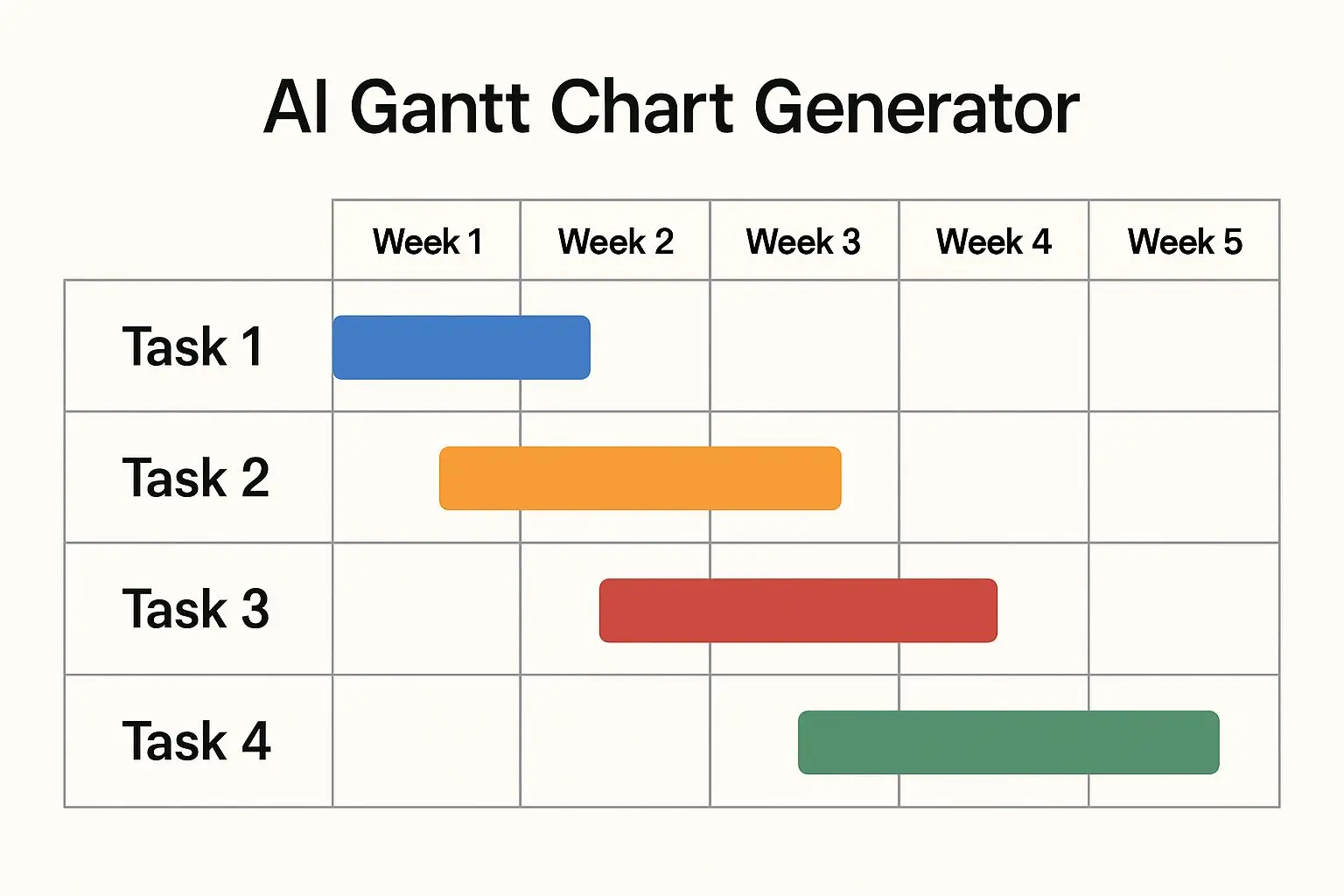
A Gantt chart is a visual project management timeline that illustrates a project schedule, task durations, and dependencies between activities.
While incredibly useful for stakeholder visibility, manual tracking requires you to juggle three separate, grueling steps simultaneously:
- Data Entry: Inputting every individual task, assignee, start date, and end date.
- Logic Mapping: Creating sequential dependencies (e.g., Task B cannot start until Task A is 100% complete).
- Visual Layout: Adjusting block scales, color keys, and spacing so the chart is readable.
When a single deadline shifts, a cascade of manual updates follows. This friction is why a simple timeline update can consume an entire afternoon.
How to Create a Gantt Chart with AI in Under 2 Minutes
Time needed: 2 minutes
A step-by-step guide for non-technical project managers to generate automated, visual project timelines using artificial intelligence.
- Write a Natural Language AI Timeline Prompt
Input your project details, dates, and dependencies in plain language into an AI tool like ChatGPT or Claude, asking it to format the output into Mermaid.js syntax.
- Generate the Timeline Syntax
The AI tool will process your data and output a structured code block using Mermaid.js syntax.
- Render the Visual Chart
Copy the text syntax and paste it into a free tool like Mermaid Live Editor to instantly render a professional visual timeline.
You don’t need to master complex design software or advanced Excel formulas to build professional project roadmaps. By leveraging generative AI Gantt Chart Generator, you can convert a chaotic text “brain dump” into a client-ready visual chart instantly.
Step 1: Use a Direct AI Timeline Prompt
Paste your raw project parameters into a generative AI tool like ChatGPT or Claude. Don’t worry about formatting; simply write in plain, natural language.
Copy-and-Paste AI Prompt:
“I am a non-technical project manager leading a website overhaul. Act as an expert operations assistant. Translate the following project details into a clean, professional visual Gantt chart format using Mermaid.js code: We need client discovery (Oct 1-5), wireframing (Oct 6-12), copywriting (Oct 10-18), core development (Oct 15-Nov 5), and QA testing (Nov 6-12). Development cannot start until wireframing concludes. Copywriting runs in parallel with wireframing. Ensure distinct sections for Strategy, Content, and Launch.”
Step 2: Generate the Syntax
The AI will immediately process your dependencies and output a structured code block using a standard visualization language called Mermaid.js. It looks like this:
text
gantt
    title Website Overhaul Timeline
    dateFormat  YYYY-MM-DD
    section Strategy
    Client Discovery   :active, des1, 2026-10-01, 2026-10-05
    Wireframing        : des2, 2026-10-06, 2026-10-12
    section Content & Dev
    Copywriting        : des3, 2026-10-10, 2026-10-18
    Core Development   : des4, after des2, 2026-11-05
    section Launch
    QA Testing         : des5, 2026-11-06, 2026-11-12
Use code with caution.
Step 3: Render Your Visual Chart
You do not need to know how to code to use this. Simply copy the generated text block and paste it into a free, open-source tool like the Mermaid Live Editor. The platform will instantly render a beautifully spaced, perfectly aligned interactive visual timeline.
If your client pushes a deadline back, you don’t need to manually re-drag blocks. Simply tell your AI: “Move the wireframing start date back by 4 days and update all subsequent dependencies automatically.” Copy, paste, and your updated chart is ready.
3 Best AI Gantt Chart Tools for Non-Technical Teams
If you want to bypass code blocks entirely, several modern project management tools feature native AI capabilities built specifically for operational efficiency:
| Tool | Best For | Key AI Feature |
|---|---|---|
| Claude (by Anthropic) | Instant Interactive Previews | The “Artifacts” feature renders, styles, and displays your visual Gantt chart right inside your chat window for quick screenshots. |
| Whimsical AI / Miro AI | Visual Thinkers & Brainstorming | Allows you to paste raw, unorganized bullet points and click “Generate Timeline” to instantly output drag-and-drop roadmap blocks. |
| Notion AI | All-in-One Workspace Users | Instantly parses unstructured meeting minutes or project scopes and populates them into an interactive Timeline View database. |
Summary: Take Your 4 Hours Back
Your value as a project manager, operations lead, or coordinator isn’t measured by how well you can format a cell grid or align color blocks. Your value lies in clearing roadblocks for your team, managing stakeholder relationships, and shipping quality work on time.
Stop fighting the spreadsheet. Let artificial intelligence handle the pixels so you can handle the people.
Frequently Asked Questions (FAQs)
Can ChatGPT or Claude generate a visual Gantt chart directly?
While text-based models cannot directly output image files like .png or .pdf in standard chat boxes, they can instantly write the code structure (such as Mermaid.js) required to render one. Furthermore, Claude (using its Artifacts feature) and advanced versions of ChatGPT can render functional visual charts inline right inside your web browser window, allowing you to capture screenshots instantly.
What is the best free AI Gantt chart generator?
For a pure, non-technical workflow, the combination of ChatGPT or Claude paired with the free, open-source Mermaid Live Editor is the most powerful free solution. If you prefer a native drag-and-drop tool that handles the visualization without code, Miro AI and Whimsical AI offer generous free tiers that build interactive visual timelines using simple text prompts.
How do I prompt an AI to create a project timeline?
To get an accurate timeline, your prompt must include three structural elements:
- The specific tasks and phases (e.g., discovery, design, development).
- Estimated timeframes or concrete start and end dates.
- Clear task dependencies (e.g., “Task B cannot begin until Task A is completely finished”).
Can AI update my Gantt chart if a project deadline shifts?
Yes. Unlike manual tracking systems where you have to click and re-drag individual project bars, you can simply feed your original data back into your AI assistant or AI Gantt chart generator and type: “Move the initial kickoff date back by 5 business days and auto-adjust all downstream task dates accordingly.” The system will regenerate the entire visual timeline flawlessly in seconds.