The best Online Markdown Editors as picked by our editors, broken down by use case.
If you’re still writing long-form content in a clunky word processor, you’re probably fighting with formatting more than you’re actually writing.
Markdown strips all that noise away, letting you focus on words instead of toolbars, and the right online editor makes that switch almost effortless. Before diving into specific tools, it’s worth checking out The Non-Tech AI, which breaks down productivity tools like these for writers who aren’t necessarily tech-savvy but still want to work smarter.
Key Takeaways
- StackEdit remains the top overall pick for 2026 thanks to seamless Google Drive and Dropbox syncing across every device you own.
- HackMD is the best option if you write with a team and need real-time co-editing similar to Google Docs.
- Resources like The Non-Tech AI can help writers who feel intimidated by markdown syntax get comfortable with it quickly.
- Free tools like Dillinger prove you don’t need a paid subscription to get clean, distraction-free markdown editing.
- Stick around for the full comparison table to see exactly which editor fits your workflow, whether you’re a solo blogger or managing a content team.
Markdown has quietly become the default language of writing on the web. Blog platforms, documentation sites, note-taking apps, and even email tools now accept markdown formatting because it’s faster to type and easier to read in raw form than HTML or rich text ever was. But not every markdown editor treats writers the same way, and choosing poorly can cost you hours of formatting headaches down the line.
Why Your Markdown Editor Choice Matters More Than Ever
Writing in markdown sounds simple until you realize some editors don’t support tables properly, others strip your formatting when you export to Word, and a few lack basic autosave. These gaps matter more in 2026 because so much published content now moves between platforms, from a CMS to a newsletter tool to a client’s Google Doc, all in the same afternoon.
A good markdown editor should disappear into the background. You shouldn’t be thinking about the tool at all, you should be thinking about your sentence structure, your argument, or your next paragraph. That’s the standard I’m holding every editor on this list to.
What Changed in Markdown Tools for 2026
Cloud syncing is now table stakes rather than a premium feature. Most serious editors released in the last two years also added AI-assisted formatting suggestions, better mobile support, and tighter integrations with platforms like Notion, GitHub, and WordPress. According to the original Markdown specification by John Gruber, the entire point of the syntax was to be readable as plain text first and formatted text second, and the best modern editors still honor that philosophy rather than burying it under bloated interfaces.
Quick Comparison of Top Picks
- StackEdit – best for writers who switch between laptop, tablet, and phone constantly
- Dillinger – best free, no-login-required option for quick drafts
- HackMD – best for teams co-writing documents in real time
- HedgeDoc – best open-source option for privacy-conscious writers
- Notion – best if you already live inside an all-in-one workspace
- Markdown Live Preview – best for one-off edits with zero setup
Each of these tools solves a slightly different problem, and picking the wrong one often means layering a second tool on top just to cover the gaps. I’ll walk through what each editor actually does well, where it falls short, and who should be using it, starting with the one that handles cross-device syncing better than almost anything else on the market right now.
1. StackEdit: Best for Cloud Sync Across Devices
StackEdit has stayed near the top of most writers’ toolkits for one simple reason: it syncs directly with Google Drive, Dropbox, and GitHub without forcing you through a clunky export-import routine. Write a draft on your laptop during your commute, open it on your phone at lunch, and the changes are already there. That kind of friction-free syncing is rare among free tools.
Key Features and Integrations
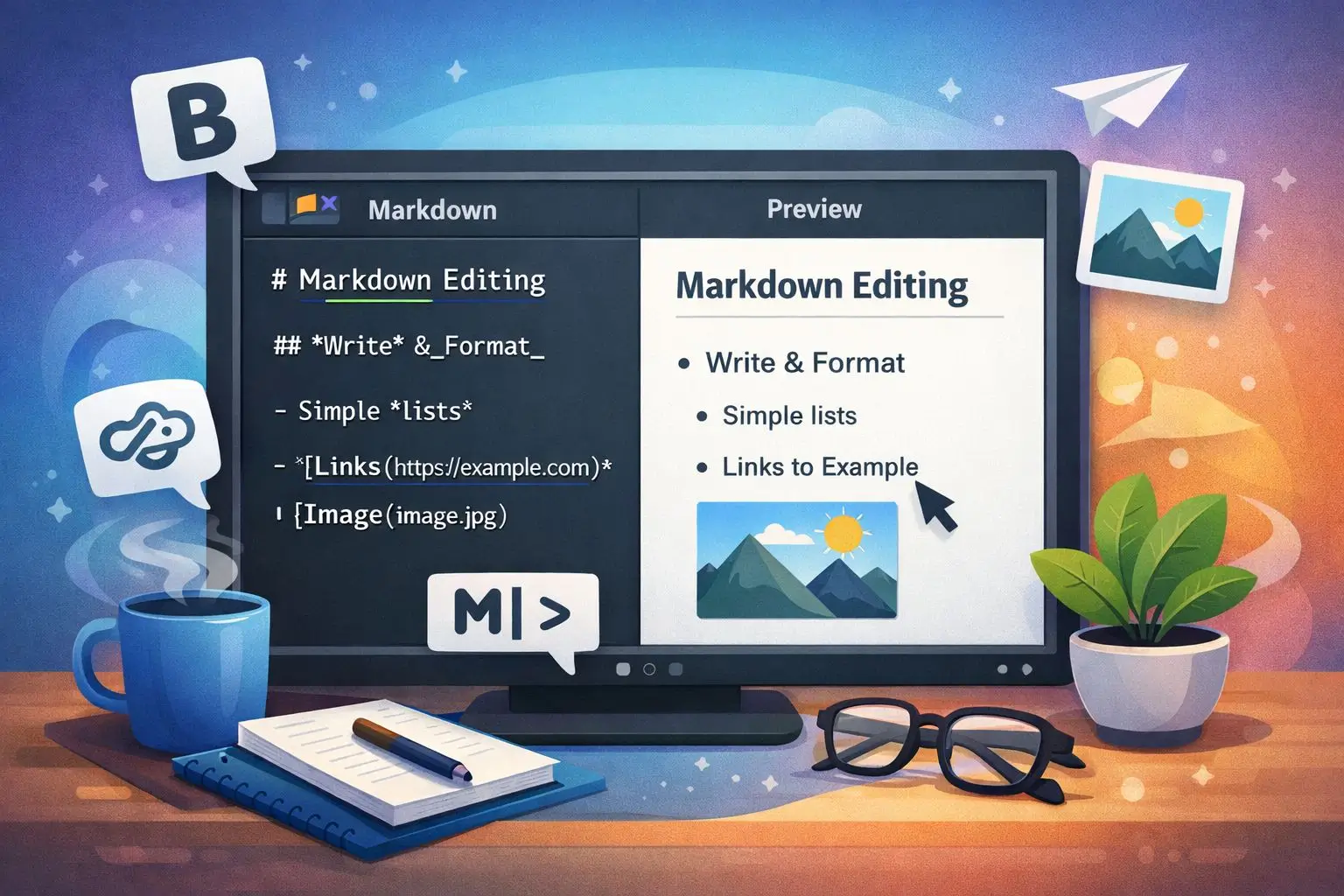
StackEdit runs as a Progressive Web App, meaning you can install it like a native app and still edit offline when your internet drops. It supports split-screen live preview, so you see your rendered markdown update in real time as you type on the left side of the screen. Syncing happens automatically in the background once you reconnect.
The editor also supports custom CSS themes if you want your preview pane to match the final styling of your blog or documentation site. For developers, this matters because it lets you catch formatting issues before you ever push content live.
One small but useful detail: StackEdit lets you publish directly to Blogger, WordPress, and GitHub Pages from inside the editor itself, cutting out an entire step most writers don’t realize they’re wasting time on.
Who Should Use StackEdit
If you write across multiple devices and hate the idea of emailing drafts to yourself, StackEdit solves that exact problem. It’s particularly strong for freelance writers juggling several clients who each use different publishing platforms.
2. Dillinger: Best Free and Lightweight Editor
Dillinger has been around for years, and it’s stayed relevant because it does one thing extremely well: fast, clean, no-friction markdown editing with zero account requirement. You open the browser tab, you start typing, and that’s it.
Where Dillinger separates itself from newer competitors is export flexibility. You can pull your file in from Dropbox, GitHub, or OneDrive, edit it, and push it right back out to any of those same services, or export locally as styled HTML, raw HTML, or PDF.
Export Formats and Simplicity
The interface uses the same split-pane live preview most writers expect now, but Dillinger keeps its toolbar minimal on purpose. There’s no AI assistant popping up, no notification badges, just a clean writing surface. For writers who find modern apps distracting with constant feature prompts, that minimalism is the entire appeal.
3. HackMD: Best for Real-Time Team Collaboration
HackMD built its reputation among developer teams writing technical documentation together, but it works just as well for content teams drafting articles, meeting notes, or editorial calendars collaboratively. Multiple people can edit the same document simultaneously, and you see each collaborator’s cursor and changes appear live, the same way Google Docs handles shared editing.
What makes HackMD particularly useful for writing teams is the built-in commenting system paired with version history. You can roll back to any previous save point if an edit goes sideways, which removes a lot of the anxiety around letting multiple editors loose on the same draft.
Live Co-Editing and Version History
Every document in HackMD generates a shareable permalink, so sending a draft to an editor or client takes one click instead of exporting and emailing a file. Changes are timestamped automatically, and you can view a full diff of what changed between any two versions, which is genuinely useful when tracking down who introduced a factual error or formatting break.
Pricing Tiers and Team Plans
HackMD’s free tier covers individual use and small collaborative projects without much restriction. Paid plans start around five dollars per month for individual pro features, while team and enterprise tiers add single sign-on, custom branding, and higher storage limits for organizations managing larger documentation libraries.
4. HedgeDoc: Best Open-Source Self-Hosted Editor
HedgeDoc appeals to a specific type of writer, the one who wants complete control over where their words live. Because it’s open-source, you can host HedgeDoc on your own server instead of trusting a third-party company with your drafts, your notes, or your unpublished manuscript. That matters a lot more than it sounds like once you’ve had a cloud tool change its terms of service overnight.
Privacy and Data Control Benefits
Self-hosting means your content never touches a server you don’t control, which is a meaningful consideration for journalists, researchers, or anyone writing sensitive material before publication. HedgeDoc still supports the same live preview and collaborative editing features found in hosted tools like HackMD, so you’re not sacrificing functionality for privacy.
The setup does require some technical comfort, since you’re typically deploying it through Docker or a similar hosting method rather than just signing up with an email address. For writers without a developer on hand, this is the main tradeoff, though several managed HedgeDoc hosting services have popped up recently to simplify that process for a small monthly fee.
5. Notion: Best All-in-One Workspace With Markdown Support
Notion isn’t a dedicated markdown editor, but it’s become the default workspace for so many writers and teams that it deserves a spot here. You can type markdown shortcuts directly into any Notion page and watch them convert instantly into formatted headers, bullet points, or bold text, which speeds up drafting considerably once the shortcuts become muscle memory.
The bigger advantage is context. Instead of switching between a separate markdown editor and your project management tool, your outlines, drafts, research notes, and final copy all live in the same workspace. For writers managing multiple articles or clients at once, that consolidation alone can save a surprising amount of time each week.
Markdown Shortcuts Inside Notion
Typing a pound sign followed by a space creates a heading, two asterisks around a word makes it bold, and a dash followed by a space starts a bulleted list, all without touching your mouse. Notion also supports slash commands, so typing “/table” or “/toggle” pulls up formatting blocks that go beyond standard markdown syntax entirely.
Limitations Compared to Dedicated Editors
Notion’s markdown support isn’t as pure or portable as what you get from StackEdit or Dillinger. Exporting a Notion page to a clean .md file sometimes introduces formatting quirks, especially with nested lists or embedded tables, so writers who need pristine markdown files for a static site generator or GitHub repository may find themselves doing manual cleanup afterward.
6. Markdown Live Preview: Best for Quick One-Off Edits
Sometimes you don’t need an account, a sync feature, or a collaboration tool, you just need to quickly check how a snippet of markdown will render before pasting it somewhere else. Markdown Live Preview exists for exactly that moment. There’s no sign-up, no save button, just a text box on the left and rendered output on the right. It’s the digital equivalent of scratch paper, and for writers troubleshooting a formatting issue in the middle of a deadline, that simplicity is worth more than any feature list.
Side-by-Side Comparison Table
Seeing these tools laid out next to each other makes the decision a lot easier, especially if you’re weighing price against collaboration features.
| Editor | Best For | Price | Collaboration | Offline Access |
|---|---|---|---|---|
| StackEdit | Cross-device syncing | Free | No | Yes |
| Dillinger | Quick, free editing | Free | No | No |
| HackMD | Team collaboration | Free, Pro from $5/mo | Yes | Limited |
| HedgeDoc | Privacy and self-hosting | Free (self-hosted) | Yes | Depends on setup |
| Notion | All-in-one workspace | Free, Plus from $8/mo | Yes | Yes |
| Markdown Live Preview | One-off quick checks | Free | No | No |
Must-Have Features for Any Markdown Editor
Beyond brand names, it helps to know what you’re actually evaluating when you try a new tool. A handful of features separate a genuinely useful markdown editor from one that’s just a plain text box with a fancy name.
1. Syntax Highlighting and Live Preview
Syntax highlighting color-codes your markdown as you type, so headers, bold text, and links are visually distinct from regular paragraph text even before rendering. Paired with a live preview pane, this lets you catch formatting mistakes immediately instead of discovering a broken link after you’ve already published.
Most of the editors covered here handle this well, but the quality of the preview rendering varies. Some tools render tables and code blocks more accurately than others, which matters if your writing regularly includes either.
2. Keyboard Shortcuts That Speed Up Writing
Keyboard shortcuts are where experienced markdown writers really pull ahead of beginners in terms of speed. Once you’ve internalized a handful of commands, you rarely need to touch a toolbar button again, and your hands never leave the keyboard.
The most useful shortcuts to learn across nearly every markdown editor include bolding text, creating headers at different levels, inserting links, and starting ordered or unordered lists. Learning these five or six commands alone can cut your formatting time in half compared to clicking through menus.
Here’s a quick reference for the shortcuts that work across most major markdown editors:
- Pound sign (#) followed by a space creates a heading, with additional pound signs creating smaller subheadings
- Double asterisks around text (**word**) makes it bold
- Single asterisks around text (*word*) makes it italic
- Square brackets followed by parentheses, like [text](url), creates a hyperlink
- A dash followed by a space starts a bulleted list item
- A number followed by a period starts a numbered list item
3. Export Options for HTML, PDF, and Word
Writing in markdown is only half the job, since most of that content eventually needs to land somewhere else, whether that’s a CMS, a client’s inbox, or a print-ready PDF. The strongest editors support exporting directly to HTML, PDF, and Word document formats without requiring a third-party conversion tool.
This matters more than writers often expect. According to the W3C’s web standards documentation, clean HTML export directly from markdown reduces the risk of broken formatting when content moves between platforms, since markdown converts to standards-compliant HTML far more reliably than copying and pasting from a rich text editor.
4. Offline Access and Auto-Save
Internet connections drop, laptops run out of battery, and deadlines don’t care about either. An editor with reliable offline access and automatic saving protects you from losing an hour of work because your WiFi cut out mid-sentence. StackEdit and Notion both handle this well through their Progressive Web App setups, while browser-only tools like Dillinger and Markdown Live Preview don’t offer the same safety net once your connection drops.
Who Gets the Most Value From These Tools
Not every writer needs the same features, and matching your workflow to the right editor matters more than chasing whichever tool has the longest feature list. Someone drafting a weekly newsletter alone has very different needs than a five-person content team shipping documentation every sprint.
Think about how you actually work day to day before picking a tool based on hype alone. The questions worth asking yourself are simple: do you write alone or with others, do you need your files to live in a specific format for a CMS, and how often do you switch devices mid-project?
A solo blogger syncing drafts between a laptop and phone has almost nothing in common with a five-person documentation team pushing updates to a shared knowledge base daily, yet both groups often default to whatever markdown editor they heard about first.
Matching the tool to the actual workflow, rather than the other way around, is what separates writers who feel efficient from writers who feel like they’re constantly fighting their software.
Writers and Bloggers
If you’re writing blog posts, newsletters, or long-form articles solo, StackEdit or Dillinger will cover almost everything you need without adding unnecessary complexity. The direct publishing integrations in StackEdit especially cut down on the number of steps between finishing a draft and getting it live.
Developers Documenting Code
Developers writing technical documentation tend to gravitate toward HedgeDoc or HackMD because both handle code blocks, syntax highlighting for multiple programming languages, and version control style history far more gracefully than general-purpose writing tools. If your documentation lives alongside a codebase on GitHub, these two integrate more naturally into that existing workflow.
Remote Teams Taking Shared Notes
Teams spread across time zones benefit most from HackMD or Notion, since both allow asynchronous editing without version conflicts. A team member in London can leave a draft mid-sentence, and a colleague in Austin can pick it up hours later without either person overwriting the other’s work.
Pairing Your Markdown Editor With Other Productivity Tools
A markdown editor rarely works in isolation. Most writers connect it to a broader stack that includes a task manager, a cloud storage service, and often a publishing platform like WordPress or Ghost. StackEdit’s native Google Drive integration, for example, means your drafts automatically sit alongside your other work documents without a separate backup step.
For writers juggling multiple tools and trying to figure out which combinations actually save time versus which ones just add more apps to manage, resources like The Non-Tech AI are worth bookmarking. They regularly cover how different productivity tools fit together for non-technical writers trying to build an efficient system without needing a computer science degree to set it up.
My Final Pick for Most Users in 2026
After testing the syncing, export quality, and collaboration features across all six editors, StackEdit remains my top recommendation for the broadest range of writers. It strikes the right balance between simplicity and power, handling everything from quick drafts to full publishing workflows without demanding a steep learning curve.
- Choose StackEdit if you write across multiple devices and want automatic cloud syncing without manual exports
- Choose HackMD if your work involves real-time collaboration with a team
- Choose Dillinger if you want the fastest, most distraction-free option with zero setup
- Choose HedgeDoc if data privacy and self-hosting are non-negotiable for your writing
- Choose Notion if you’d rather keep your writing inside a broader workspace that also handles project management
There’s no single universally correct answer here, and that’s actually good news. It means you can match the tool precisely to how you write, rather than forcing your workflow to bend around software that wasn’t built with your needs in mind.
Whichever editor you land on, give it at least a full week of real use before judging it. Formatting habits take a few days to settle in, and most of the frustration writers report with new markdown tools disappears once the keyboard shortcuts become automatic.
Frequently Asked Questions
A few questions come up constantly from writers switching to markdown for the first time, so here are quick, straightforward answers to the ones that matter most.
What is the easiest online markdown editor for beginners?
Dillinger is the easiest option for beginners because it requires no account, no setup, and no learning curve beyond typing basic markdown syntax into a clean text box with an instant live preview.
Can I use markdown editors without an internet connection?
Yes, several markdown editors support offline access, though not all of them do. StackEdit and Notion both function as Progressive Web Apps, meaning you can install them on your device and keep writing even when your WiFi drops, with changes syncing automatically once you’re back online. Browser-only tools like Dillinger and Markdown Live Preview typically require an active connection to work at all.
Is markdown better than using a word processor like Word?
Markdown is better for writers who publish content online regularly, since it converts cleanly into HTML and avoids the formatting inconsistencies that often happen when pasting Word documents into a CMS or website.
Do online markdown editors save my work automatically?
Most modern markdown editors, including StackEdit, HackMD, and Notion, save your work automatically in the background as you type, so you rarely need to hit a manual save button at all.
Which markdown editor is best for coding documentation?
HackMD and HedgeDoc are both strong choices for coding documentation because they handle syntax highlighting for multiple programming languages and support version history, which matters when several developers are editing the same technical document over time.
Picking the right markdown editor comes down to matching the tool to how you actually write, not chasing whichever app has the most features on paper.
If you’re still figuring out which productivity tools fit your workflow best, The Non-Tech AI breaks down tools like these in plain language so you can start writing faster today.