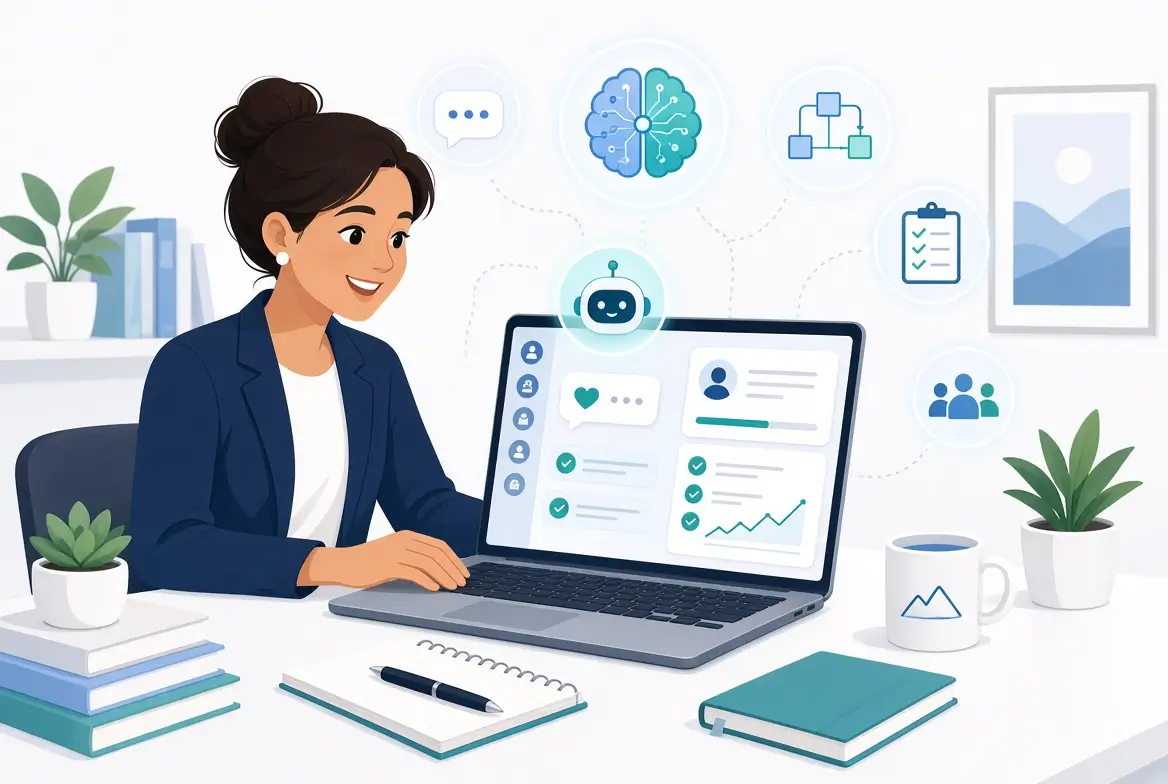
Most non-technical project managers use AI the same way every time: open a chat, paste notes, type a prompt, copy the result, and repeat. This works, but it is inefficient. A better approach is to build a simple personal AI assistant that already knows your preferred style, common prompts, and recurring needs. Once set up, it reduces repetitive work and produces more consistent results.
This guide shows you how to create a practical personal AI assistant for project management using free or low-cost tools, no coding required. You will learn what to include, step-by-step setup instructions, and real examples you can copy.
What Is a Personal AI Assistant in This Context?
A personal AI assistant is not a complex robot. It is a customized version of a tool like ChatGPT, Claude, or Gemini that remembers:
- Your role and communication style
- Preferred formats for status reports, meeting summaries, and plans
- Recurring project types or terminology
- Instructions you want followed every time
Think of it as a well-trained helper that already understands how you like to work.
Why Non-Technical Project Managers Benefit
A personal AI assistant helps you:
- Save time on repeated prompts
- Keep output consistent across reports and updates
- Reduce the chance of forgetting important instructions
- Build a reliable system instead of starting from scratch each time
Many project managers who set this up report that their weekly AI-related work becomes noticeably faster and cleaner.
Step-by-Step: How to Build Your Personal AI Assistant
Step 1: Choose Your Base Tool
Start with one of these:
- ChatGPT (Custom GPTs or Projects)
- Claude (Projects)
- Gemini (Gems)
- Notion AI or similar tools that allow custom instructions
Free tiers are enough to begin.
Step 2: Write Clear Custom Instructions
This is the most important part. Create a short document that tells the AI who you are and how it should behave.
Example custom instructions:
You are my personal project management assistant. I am a non-technical project manager.

Always:
- Use clear, professional, and concise language
- Structure status reports with: Overall Status, Key Accomplishments, Risks/Blockers, Next Steps
- Extract action items with owners and due dates when summarizing meetings
- Keep outputs easy to scan with bullet points
- Flag anything that seems uncertain or missing information
- Match a practical, straightforward tone (not overly formal or hype-filled)

When I ask for a project plan or WBS, break work into logical phases and tasks.
When I provide rough notes, organize them cleanly without inventing details.
Step 3: Add Your Best Prompts as Starting Points
Save your most-used prompts inside the assistant or in a linked document so you can reuse them quickly. Examples include prompts for status reports, meeting summaries, and project plans.
Step 4: Include Context About Your Work (Optional but Powerful)
You can add light context such as:
- Typical project types you manage
- Preferred tools (e.g., “We use Monday.com and Slack”)
- Common stakeholders or reporting cadence
Keep this general to avoid sharing sensitive information.
Step 5: Test and Refine
Run several real tasks through your new assistant. Note what works and what needs adjustment. Update the instructions based on real use.
Step 6: Make It Part of Your Routine
Use the same assistant for all recurring project work. Consistency compounds the benefits.
Practical Examples of What Your Assistant Can Handle
Once set up, you can simply say things like:
- “Turn these notes into this week’s status report”
- “Summarize this meeting transcript and list action items”
- “Create a high-level project plan from this goal”
- “Improve the clarity of this update for executives”
The assistant already knows your preferred structure and tone, so results come back closer to finished.
Tips for Better Results
- Keep custom instructions concise (one short page is usually enough).
- Update the instructions when you notice repeated corrections.
- Create separate assistants if you manage very different types of projects.
- Always review the final output before sending to stakeholders.
- Store your best prompts in one place for quick access.
Common Mistakes to Avoid
- Making the instructions too long or complicated
- Including confidential project details in the permanent instructions
- Expecting perfection on the first try (refinement is normal)
- Creating the assistant and then continuing to use generic chats
- Forgetting to review AI output for accuracy
Free vs Paid Considerations
You can build a useful personal assistant on free plans. Paid plans (ChatGPT Plus, Claude Pro, etc.) mainly give you higher limits, faster responses, and more advanced features. Start free and upgrade only if you hit clear limitations.
How This Fits Into Your Broader AI System
A personal AI assistant becomes the central hub for many of the other techniques in this series: status reports, meeting summaries, project plans, and accuracy checks all become faster and more consistent.
For the complete framework, see the main guide:
Step-by-step Guide to Using AI in Project Management for Non-Technical PMs
Related articles:
- 10 Everyday Project Management Tasks You Can Automate with AI
- Ultimate Guide to Writing Better Project Status Reports with AI in Minutes
- How to Create Project Plans Using Simple AI Prompts
- Project Managers Guide to AI Meeting Summaries and Action Item Tracking
- Free vs Paid AI Tools for Non-Tech Project Managers
- Checking AI-Generated Output for Accuracy Before Sending to Stakeholders
Final Thoughts
You do not need technical skills to build a personal AI assistant. You only need clear instructions and a bit of initial setup time.
Spend 20–30 minutes creating your assistant this week. Use it for your next few status reports and meeting summaries. Most non-technical project managers quickly notice that the output requires less editing and the overall process feels smoother.
A well-designed personal assistant turns AI from a helpful tool into a reliable part of your weekly project workflow.
Frequently Asked Questions
No. Free versions of ChatGPT, Claude, and Gemini support custom instructions or projects that work well for this purpose.
Most people complete a useful first version in 20–40 minutes. Refinement happens naturally with use.
Yes. Some project managers create one for internal work and another for client-facing communication.
Keep the core instructions focused on your role and preferred formats. Add temporary context in individual chats when needed.
Not exactly. This is a customized chatbot with permanent instructions. Full AI agents that take independent actions are more advanced and usually require additional setup.