The Complete Guide to Using AI in Project Management for Non-Technical PMs (2026)
- AI in project management is not just for tech teams. Non-technical PMs are actually well-positioned to get the most out of it because they focus on outcomes, not outputs.
- The biggest time savings come from automating repetitive tasks like status reports, meeting summaries, and risk registers, freeing you to focus on decisions that actually move projects forward.
- Tools like Monday.com, Asana, ClickUp, and Microsoft Copilot already have AI built in, meaning you do not need to learn a new platform from scratch.
- AI gets timelines wrong more often than vendors admit. Understanding where AI prediction fails is just as important as knowing where it helps.
- The PM who learns to use AI now will have a significant career advantage over those who wait, a shift that is already happening faster than most realize.
Every project manager I talk to right now is either using AI or wondering if they are already falling behind by not using it.
The good news? You do not need to write a single line of code, understand machine learning, or have a technical background to make AI work for you as a project manager. In fact, the soft skills that make great PMs, like communication, stakeholder management, and clear thinking, are exactly what make AI tools more effective in your hands.
If you are looking for practical, no-jargon guidance on how to actually use these tools, resources built specifically for working project managers can shortcut a lot of trial and error.
Key Takeaways: AI in Project Management at a Glance
Before we get into the how, it helps to understand the why. AI is not replacing project management as a discipline. It is removing the parts of the job that eat your time without adding real value. The repetitive reporting, the manual schedule updates, the chasing of status updates. What is left when those tasks are handled automatically is the work that only a human PM can do. Building trust, navigating conflict, and making judgment calls under pressure.
This guide is written specifically for non-technical PMs who want to start using AI practically, without wading through technical documentation or vendor marketing. Every tool, prompt, and workflow recommended here has been selected based on real usability for people who do not have a software development background.
AI Is Already Running Your Competitors’ Projects
Project management software vendors have been quietly embedding AI into their platforms for the past two years. What started as experimental features, such as an auto-generated summary here, a suggested due date there, has matured into genuinely useful functionality that is now standard in most enterprise-tier project tools. Teams using these features are completing risk assessments faster, producing stakeholder reports in minutes instead of hours, and catching timeline slippage before it becomes a crisis.
Why Non-Technical PMs Are Actually Best Placed to Use AI
Here is something the tech industry rarely admits: the people getting the most value from AI project management tools right now are not developers or data analysts. They are experienced project managers who know exactly what problem they need solved. A technical person might find AI fascinating as a system. A PM sees it as a tool that either saves time or does not. That outcome-focused mindset is precisely what makes AI more effective in a PM’s hands. You are not distracted by how it works. You care about what it delivers.
What AI in Project Management Actually Means in Plain English
At its core, AI in project management means software that can process large amounts of project data and either take action automatically or surface recommendations for you to act on. It is not a robot making decisions. It is a very fast assistant that has read every status report, every project timeline, and every risk log you have ever produced, and can now spot patterns you would miss.
The practical applications break down into a few clear categories:
- Generating content (reports, summaries, risk registers)
- Predicting outcomes (deadline risks, resource gaps)
- Automating repetitive actions (status update requests, dependency tracking)
Each of these has a direct, measurable impact on how much time you spend on administrative work versus actual project leadership.
What AI Can and Cannot Do in Project Management
Setting realistic expectations here is critical. Vendors oversell AI capabilities constantly, and the PMs who get burned are usually the ones who believed the marketing without testing the reality.
Tasks AI Handles Better Than Humans
There is a specific category of project management work where AI is genuinely, measurably better than a human PM working manually. These tasks share a common trait. They involve processing a high volume of structured data quickly to surface a pattern or produce a formatted output. Speed and consistency are what matter, and humans simply cannot compete at scale.
The clearest examples include pulling data from multiple sources to generate a status report. Scanning a project schedule to flag tasks that are overdue or at risk based on historical completion rates. Or comparing planned versus actual spend across budget line items. AI does all of these without getting tired, without forgetting a line item, and without the reporting bias that sometimes creeps into human-written updates.
- Generating first-draft status reports from task data
- Summarizing meeting transcripts into action items with owners
- Identifying schedule risks based on task completion velocity
- Flagging budget variances above a defined threshold automatically
- Drafting risk registers based on project scope inputs
- Suggesting resource reallocation when workloads are unbalanced
Notice that none of these tasks require AI to make a final decision. They require it to do the groundwork so that you can make a better-informed decision faster.
Where Human Judgment Still Wins
Stakeholder relationships, team morale, scope negotiation, and conflict resolution are still entirely human territory. AI cannot read the room in a tense project kickoff. It cannot tell you that the reason the engineering lead keeps missing deadlines is because they are overwhelmed by a separate internal initiative. Context, politics, and nuance are still yours to manage.
The Biggest Misconception Non-Technical PMs Have About AI
The most common misconception is that using AI requires you to set it up technically. Connecting APIs, writing scripts, or configuring complex automations. For the tools covered in this guide, that is simply not true. Modern AI project management features are designed to work through plain language prompts or single-click actions inside the interfaces you are already using.
The second misconception is that AI output can be used without review. Every AI-generated report, timeline, or risk item should be treated as a strong first draft, not a finished product. The PM’s job shifts from creating the content to reviewing and refining it, which is still faster. But it is not zero effort.
The third, and arguably the most damaging misconception, is that AI will figure out what you need without clear input. The quality of what AI produces is directly proportional to the quality of what you put in. Garbage in, garbage out applies here more than anywhere else. A vague project brief fed into an AI scheduling tool produces a vague, unhelpful schedule. A detailed, structured brief produces something genuinely useful.
The Core AI Features Built Into Project Management Tools
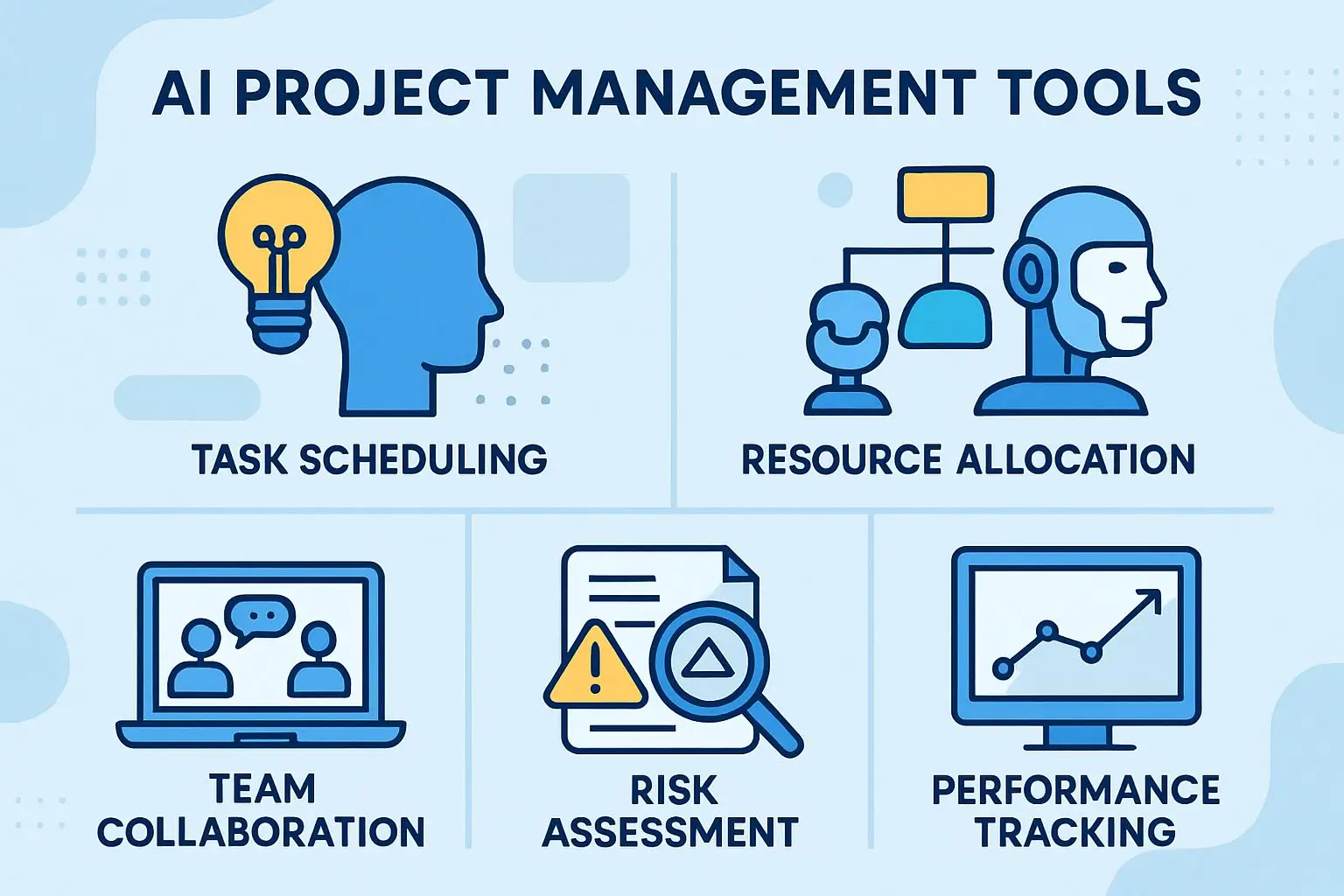
Most non-technical PMs are surprised to discover they already have access to significant AI functionality inside the tools they use every day. The features are not always labeled obviously, but they are there. Understanding what each one actually does helps you decide where to start.
The four categories of AI features that appear most consistently across major project management platforms are automated scheduling, risk flagging, resource allocation, and AI meeting summarization. Each solves a specific, recurring pain point that PMs across every industry and project type share.
Automated Scheduling and Deadline Prediction
Automated scheduling uses AI to build or adjust a project timeline based on task dependencies, team availability, and historical completion data. In tools like Microsoft Project with Copilot, this means you can describe a project in plain language and receive a structured schedule with assigned durations as a starting point. Deadline prediction goes a step further by monitoring task progress in real time and alerting you when the current completion rate puts a milestone at risk before it actually slips.
The practical value here is not that AI builds a perfect schedule. It rarely does on the first pass. The value is that it builds a defensible starting point in minutes rather than hours, and it monitors that schedule continuously without you having to manually check every task line.
Risk Flagging and Early Warning Systems
Risk flagging AI monitors project data such as task completion rates, budget consumption, stakeholder engagement patterns, and dependency chains, and surfaces items that match known risk patterns. Some platforms, including ClickUp and Monday.com, allow you to set custom thresholds so the system alerts you when, for example, a task is more than three days overdue with no update. Or when budget consumption is running ahead of schedule progress by more than ten percent.
Resource Allocation and Workload Balancing
Workload balancing AI looks across your team’s assigned tasks and flags individuals who are over-allocated or under-utilized relative to project timelines.
Asana Intelligence, for example, surfaces workload imbalances directly in the project dashboard, showing you which team members have more assigned work than available capacity in a given week.
This removes the manual process of checking every person’s task list individually, which on a team of ten or more quickly becomes a part-time job in itself.
Meeting Summaries and Action Item Generation
This is often the first AI feature non-technical PMs start using because the return on investment is immediate and obvious. Tools like Microsoft Copilot in Teams and Otter.ai integrate with your video calls to produce a written summary of the meeting, a list of decisions made, and action items with the names of the people who were assigned them automatically, within minutes of the call ending.
For PMs running five or more meetings per week, the time saved in manual note-taking and follow-up email drafting alone can exceed several hours. More importantly, the action items captured by AI are based on what was actually said, not what the note-taker app remembered or chose to write down.
The downstream effect on accountability is significant. When everyone on the project receives an AI-generated action item list after every meeting, the “I didn’t know that was my responsibility” conversation happens far less often.
The Best AI-Powered Project Management Tools Right Now
Monday.com AI Features for Non-Technical PMs
Monday.com has positioned its AI features around one core idea: reducing the time between data and decision. The personal AI assistant inside Monday.com can generate project summaries, auto-fill task details based on project context, and produce update drafts that you can review and send directly to stakeholders. For non-technical PMs, the most immediately useful feature is the AI-generated column summaries, which pull data from across your board and produce a plain-language overview of where things stand without you writing a single word.
The formula builder is another standout feature that removes a genuine frustration for non-technical users. Instead of manually writing column formulas, you describe what you want in plain English and Monday.com AI writes the formula for you. This one feature alone has replaced hours of forum searching and trial-and-error for PMs who are not comfortable with spreadsheet-style logic.
Asana Intelligence and What It Actually Does
Asana Intelligence is built into Asana’s Business and Enterprise tiers and focuses heavily on goal tracking, workload visibility, and status reporting. The most practical feature for non-technical PMs is Smart Status, which generates a project health update automatically by reading your task completion data, flagging overdue items, and writing a summary you can edit and publish to stakeholders in under two minutes.
Real-World Example: A program manager overseeing a product launch across four workstreams used Asana’s Smart Status every Friday to generate first-draft updates for each stream. What previously took 45 minutes of manual data gathering and writing was reduced to a 10-minute review-and-edit process. Over a 12-week project, that single feature saved approximately 6 hours of reporting time.
Asana Intelligence also includes Smart Answers, which lets you ask questions about your project in plain language: “Which tasks in this project are overdue and unassigned?” and receive an immediate answer pulled from your live project data. This is particularly useful during stakeholder calls when you need a quick answer without digging through multiple boards or filters.
The workload feature in Asana shows capacity versus assignment across your team visually, and the AI layer flags when someone is over-allocated so you can redistribute before the bottleneck becomes a missed deadline. It is not a perfect system. It relies on tasks being accurately estimated and assigned. But for teams that maintain clean data hygiene, it is genuinely useful.
ClickUp AI for Task Management and Reporting
ClickUp AI, branded as ClickUp Brain, is one of the more versatile AI implementations in the project management space right now. It functions as a connected assistant that has access to everything in your ClickUp workspace such as tasks, docs, comments, and goals, and can answer questions, write content, and summarize activity across all of it.
For non-technical PMs, the standout use case is asking ClickUp Brain to generate a progress report across multiple projects without opening a single task manually.
The AI writing tools inside ClickUp are also strong for creating project documentation. You can prompt it to write a project charter, a RACI matrix, or a lessons learned document by providing the basic project details and letting the AI produce the first draft. The output quality is consistently good enough to be a real starting point rather than something that needs to be rewritten entirely. Which is the bar that actually matters in practice.
Microsoft Copilot Inside Microsoft Project
Copilot Feature What It Does Best Used For Natural Language Scheduling Builds a project schedule from a plain text description Project kickoff and initial planning Task Risk Flagging Highlights tasks at risk of delay based on current progress Weekly project reviews Status Report Generation Produces a formatted stakeholder update from task data Recurring reporting cycles Resource Conflict Detection Identifies over-allocated resources across project timelines Resource planning and rebalancing Meeting Recap in Teams Summarizes project meetings with decisions and action items Post-meeting follow-up and accountability
Microsoft Copilot’s integration with Microsoft Project is the most powerful option for PMs already working inside the Microsoft 365 ecosystem. Because Copilot has access to your calendar, emails, Teams meetings, and Project data simultaneously, it can produce a genuinely connected view of your project that standalone tools cannot replicate.
Pro Tip: You can ask Copilot to summarize everything that happened on a specific project this week, pulling from meeting notes, task updates, and emails, and receive a consolidated briefing that would take a human PM an hour to compile manually.
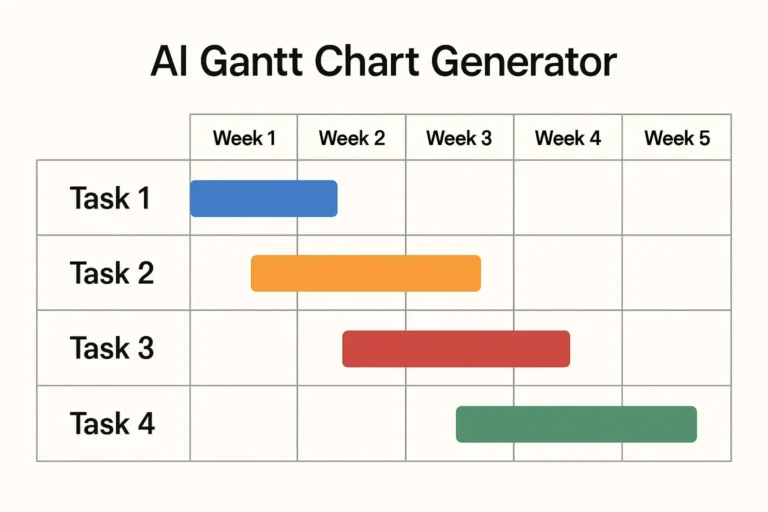
The natural language scheduling feature is particularly strong for non-technical PMs. Describing your project scope in a few sentences and receiving a structured Gantt-style timeline as a starting point removes one of the most intimidating parts of project setup for PMs who are not comfortable building complex dependency chains from scratch.
The limitation worth noting is that Copilot inside Microsoft Project requires a Microsoft 365 Copilot license, which sits on top of your existing Microsoft 365 subscription. For individual PMs or small teams, the cost-benefit calculation needs careful consideration. For enterprise teams already standardized on Microsoft, the integration value is hard to match.
How to Choose the Right Tool Without Getting Overwhelmed
Start with whatever platform your team already uses. The best AI project management tool is the one your team will actually open every day. Not the one with the most impressive feature list. If your organization runs on Microsoft 365, start with Copilot. If you are already in Asana or ClickUp, explore the AI features built into your current tier before evaluating anything new. Adding a new platform to solve a problem you could solve inside an existing one creates adoption friction that cancels out the productivity gains.
How to Use AI for Project Planning From Day One
The biggest mistake PMs make with AI for project planning is treating it as a tool they will “get to eventually” once the project is already running. The highest-leverage moment to use AI is during initial planning, before the project has started accumulating the messy reality of execution. A well-structured AI-assisted plan created on day one will surface risks, dependencies, and resource gaps that human planners routinely miss when working under kickoff pressure.
The workflow below is designed specifically for non-technical PMs who want to use AI from the first planning session rather than retrofitting it into a project already in flight. Each step builds on the previous one, so working through them in order produces the best result.
1. Feed AI the Right Project Brief From the Start
- Project objective: One clear sentence describing what success looks like at the end of the project
- Scope boundaries: What is explicitly included and what is explicitly excluded
- Key deliverables: The three to five tangible outputs the project must produce
- Timeline constraints: Hard deadlines, regulatory dates, or external dependencies
- Team and resource details: Who is available, at what capacity, and what skills they bring
- Known risks or constraints: Budget limitations, dependency on third parties, or technical unknowns
The quality of everything AI produces downstream, like your schedule, your risk register, and your work breakdown structure, depends almost entirely on how complete this brief is. Think of it as the foundation. If the foundation is vague, everything built on top of it will be unstable.
A strong brief does not need to be long. A structured half-page document covering the six elements above gives AI enough context to produce planning outputs that are specific to your project rather than generic templates dressed up with your project name. The difference in output quality between a vague prompt and a structured brief is dramatic enough that this step alone determines whether AI becomes genuinely useful or just a novelty.
One practical approach is to create a reusable brief template that you fill in at the start of every project. Once AI receives a consistently structured input, the planning outputs become consistent enough that you can build repeatable workflows around them rather than starting from scratch each time.
2. Use AI to Build Your First Work Breakdown Structure
Once your brief is complete, prompt your AI tool to generate a work breakdown structure (WBS) by feeding it the brief and asking it to decompose the deliverables into tasks and subtasks. Tools like ClickUp Brain, ChatGPT-4, and Microsoft Copilot can all produce a usable first-draft WBS in under two minutes. Your job is not to accept it uncritically but to use it as a starting point for a structured conversation with your team. One that is far more productive than staring at a blank whiteboard.
3. Let AI Identify Dependencies You Would Have Missed
After your WBS is in place, prompt AI to analyze the task list and identify logical dependencies. asks that cannot start until another is complete. Dependency mapping is one of the most error-prone parts of manual project planning because it requires holding the entire task list in your head simultaneously. AI does not have that limitation. It will surface dependency chains that experienced PMs sometimes miss when planning under time pressure, and catching a missed dependency in planning costs a fraction of what it costs to discover it mid-execution.
4. Generate a Risk Register in Minutes With AI Prompts
A risk register created manually at project kickoff often reflects whatever the PM happened to be worried about that day. An AI-generated risk register, built from your project brief and WBS, reflects the full scope of the project systematically. Prompt your AI tool with something like: “Based on this project brief and task list, identify the top ten risks to successful delivery, rate each by likelihood and impact, and suggest a mitigation action for each.” The output will not be perfect, but it will be more comprehensive than most kickoff-workshop risk sessions produce.
Review the AI-generated register with your team and add the context-specific risks that AI cannot know. he difficult stakeholder, the vendor with a history of late delivery, the internal approval process that always takes longer than planned. This combination of AI breadth and human context produces a risk register that is both comprehensive and realistic.
AI Prompts That Actually Work for Project Managers
The difference between a PM who finds AI useful and one who gives up on it after two weeks is almost always the quality of their prompts. The prompts below are written specifically for non-technical PMs and have been structured to produce outputs you can use directly or with minimal editing.
Prompts for Status Reports and Stakeholder Updates
Use this prompt structure when generating a weekly stakeholder update:
"You are a project manager. Write a concise status update for [project name] in the format: overall status (green/amber/red), summary of progress this week, key decisions made, risks and issues, and actions due next week. Here is the raw project data: [paste task updates, completion percentages, and any issue notes]."The structured format instruction is what separates a useful output from a generic paragraph that does not match your reporting template.
Prompts for Budget Variance Explanations
When you need to explain a budget variance to a sponsor without writing a long justification from scratch, use:
"Write a professional, factual explanation of a [X%] budget variance on [project name]. The variance was caused by [brief reason]. The explanation should be appropriate for an executive audience, be three to five sentences, and end with the corrective action being taken."Feeding AI the cause of the variance rather than asking it to guess is critical here. AI will produce a plausible-sounding explanation even without accurate input data, which is exactly the kind of output that gets a PM into trouble when the sponsor asks a follow-up question. Always provide the real reason and let AI handle the professional framing.
Prompts for Scope Creep Documentation
Documenting scope creep in real time protects you during project closeout and during difficult stakeholder conversations. Use this prompt when a new request arrives that falls outside the original scope:
"Write a formal scope change request document for the following addition to project [name]: [describe the new request]. Include the original scope boundary it falls outside of, the estimated impact on timeline and budget, and a recommendation to approve or defer."Having a structured scope change document generated in minutes means you can respond to scope requests the same day rather than letting them sit undocumented while you find time to write them up. Undocumented scope changes are one of the leading causes of project overruns, and AI removes the friction that allows them to accumulate.
Real Risks of Using AI in Project Management
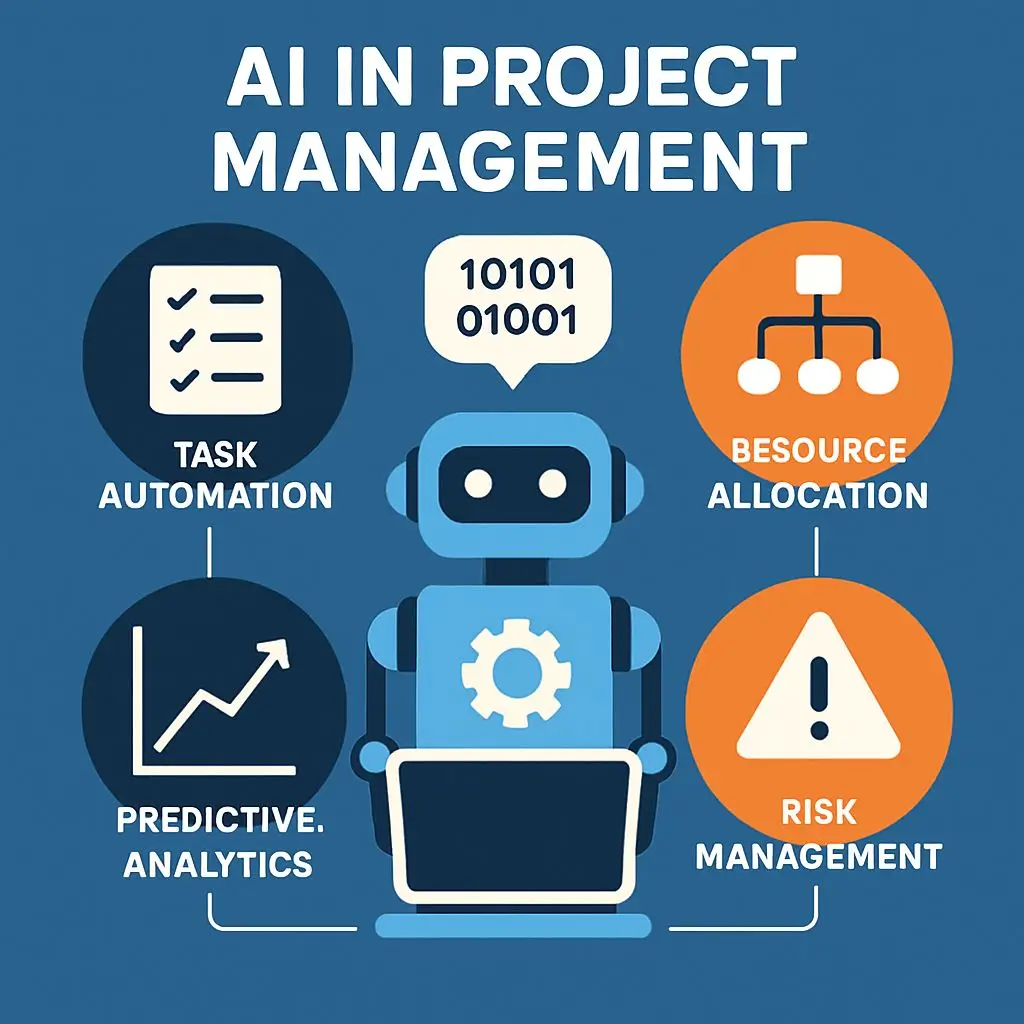
AI in project management is genuinely useful, but the vendors selling these tools have a financial incentive to show you the best-case scenario. The honest picture includes real failure modes that can cost you time, credibility, and in some cases, project outcomes. Understanding where AI breaks down is not pessimism. It is good risk management, which is literally your job.
The risks fall into three categories that every non-technical PM should know before committing to an AI-driven workflow: timeline prediction errors, data privacy exposure, and team adoption friction. None of these are reasons to avoid AI. They are reasons to use it with your eyes open.
When AI Gets Timelines Wrong
AI scheduling tools predict timelines based on historical data and task estimates. When that input data is clean, complete, and drawn from projects similar to the one being planned, the predictions are genuinely useful. When the data is sparse, inconsistent, or drawn from projects with fundamentally different characteristics, the AI produces a confident-sounding timeline that is quietly unreliable. The danger is not that AI gets timelines wrong. Humans do too. The danger is that AI presents its errors with the same visual confidence as its accurate predictions.
The specific failure pattern to watch for is what you might call the optimism compression problem. AI scheduling tools tend to underestimate task durations when historical completion data skews fast. For example, if your team has previously logged tasks as complete before all associated work was actually finished. The AI learns from that pattern and builds a schedule that reflects logged reality rather than actual effort. The resulting timeline looks reasonable on screen and falls apart in week three.
The mitigation is straightforward but requires discipline: always apply a human review buffer to any AI-generated timeline, and cross-check milestone dates against your own experience with similar project phases. AI gives you a strong starting point, not a finished plan. Treat it accordingly.
AI Timeline Risk Why It Happens How to Mitigate It Underestimated task durations AI learns from logged completion data, which may not reflect true effort Apply a 15 to 20 percent buffer on AI-generated task durations for new project types Missed external dependencies AI only sees data inside the tool. Third-party timelines are invisible to it Manually add all external dependencies before accepting the AI schedule No allowance for team context AI does not know about upcoming leave, internal initiatives, or team morale issues Overlay your own knowledge of team capacity before publishing any AI-generated schedule Overconfident critical path AI treats its critical path as fixed rather than probabilistic Identify two or three alternative critical paths manually and monitor all of them
Data Privacy Concerns With AI Tools
When you paste a project brief, budget data, or stakeholder names into an AI tool, that data goes somewhere. Where it goes, how long it is retained, and whether it is used to train future AI models depends entirely on the terms of service of the platform you are using. And most PMs have not read those terms. For projects involving confidential business strategy, personal data, or commercially sensitive information, this is a genuine compliance risk that your legal or information security team needs to weigh in on before you start using consumer-grade AI tools.
The practical guidance is to check whether your organization has an approved list of AI tools before using any third-party platform with real project data. Enterprise versions of tools like Microsoft Copilot and ClickUp Brain offer data isolation and compliance controls that consumer tiers do not. If you are in doubt, use anonymized or generalized project descriptions when prompting AI, and keep sensitive specifics out of any tool that has not been reviewed by your security team. The productivity gains are not worth a data breach or a compliance violation.
Team Resistance and How to Handle It
The most underestimated risk of introducing AI into project management is not technical. It’s actually human. Team members who feel that AI is being used to monitor their productivity, replace their contributions, or automate their jobs will quietly disengage from the tools and the data that feeds them. The result is a self-defeating cycle: bad data in, bad AI output out, and a team that blames the tool rather than recognizing the input problem. The way to break this cycle before it starts is to involve the team in selecting which AI features to use, frame AI as something that removes tedious work from everyone rather than something imposed from above, and be transparent about what data the AI tools are accessing and why.
How to Build Your AI Workflow as a Non-Technical PM
The PMs who successfully integrate AI into their practice do not overhaul everything at once. They start with one specific pain point, solve it with AI, measure the result, and then expand from there. This approach produces compounding gains over time without the overwhelm of trying to change every part of your workflow simultaneously.
The temptation when you first explore free and paid AI project management tools is to enable every feature available and see what happens. What usually happens is that nothing gets used consistently enough to produce a measurable result, and three months later the features are quietly turned off. Systematic adoption: one tool, one use case, one measured outcome, is what separates PMs who genuinely benefit from AI from those who spent a quarter experimenting without changing anything meaningful.
Before you choose your first use case, audit where your time actually goes in a typical project week. The categories that typically consume the most time for non-technical PMs without producing proportional value are worth targeting first.
- Writing and formatting status reports for multiple stakeholder groups
- Manually chasing team members for task updates before reporting deadlines
- Taking and distributing meeting notes with action items
- Rebuilding project schedules after scope changes or delays
- Creating project documentation that follows a standard template
- Compiling data from multiple sources to answer a stakeholder question
Start With One Repetitive Task and Automate It First
Pick the single most repetitive task on that list. The one that costs you the most time every week with the least creative or strategic input required. Solve only that with AI first. If status reporting takes you three hours every Friday, spend two weeks using AI to generate your first draft and track how long the review and edit process takes by comparison. A task that previously took three hours should drop to under one hour with a well-structured AI prompt and a clean data source. Once that result is consistent, you have a proven workflow you can build on rather than an experiment you are still trying to validate.
Measure Time Saved Before Adding More AI Tools
The instinct after a successful first AI use case is to immediately expand to three or four more. Resist it for at least four weeks. Use those four weeks to refine your prompts, improve your input data quality, and make the first workflow genuinely reliable before adding complexity. Consistency compounds. A single AI workflow that saves you two hours per week every week for a year produces a hundred hours of recovered time. That is worth more than five partially adopted features that each save twenty minutes occasionally.
Once you have a reliable baseline, use that measured time saving as the business case when introducing AI tools to skeptical team members or senior stakeholders. Concrete numbers like two hours saved per week, stakeholder reports delivered same-day instead of next morning, are far more persuasive than explaining what AI is capable of in theory. Show the result first. The tool justifies itself.
The PM Who Uses AI Will Replace the PM Who Does Not
This is not a prediction about distant automation. It is a description of what is already happening in hiring decisions, performance reviews, and project team compositions right now. Organizations that have moved to AI-assisted project management are measuring their PMs on outcomes and strategic contribution, not on hours spent on administrative tasks. PMs who can deliver those outcomes while managing more projects, more stakeholders, and more complexity (because AI handles the administrative load), are demonstrably more valuable than those running the same manual processes they used five years ago.
The barrier to starting is lower than it has ever been. You do not need a technical background, a new platform, or executive sign-off to begin. You need a project brief, an AI tool your organization already pays for, and one repetitive task you are willing to hand off this week. Start there. Measure the result. Build from it. The PMs who will be most sought after in the next three years are not the ones who waited until AI was universally adopted. They are the ones who built fluency now, while it still represents a competitive edge.
Frequently Asked Questions
The questions below reflect the most common points of uncertainty for non-technical PMs who are evaluating whether and how to start using AI in their practice. Each answer is based on current real-world tool capability rather than vendor marketing claims.
No. The AI features built into tools like Monday.com, Asana, ClickUp, and Microsoft Copilot are designed for users who are not developers or data scientists. They operate through plain language prompts or single-click actions inside interfaces that project managers already use daily. No coding, scripting, or technical configuration is required to access the core features described in this guide.
Yes, AI tools that automate status reporting, meeting summaries, and risk registers give small-team PMs leverage that previously required headcount to achieve. For small teams evaluating AI tools, ClickUp Brain and the AI features in Monday.com’s mid-tier plans offer the best capability-to-cost ratio without requiring an enterprise contract. Starting with a free trial of one platform before committing to a subscription is always the right approach.
AI-generated timelines are accurate enough to be a useful starting point and unreliable enough to be dangerous if accepted without review. Accuracy improves significantly when the AI tool has access to historical data from similar completed projects, when task estimates are detailed and realistic, and when external dependencies are manually added before the schedule is finalized. Treat every AI-generated timeline as a strong draft that requires your judgment before it becomes a commitment.
AI will not replace project managers, but it is already replacing the parts of project management that were purely administrative. The PM role is shifting toward higher-value work. Stakeholder influence, strategic alignment, risk judgment, and team leadership. As AI absorbs the data gathering, formatting, and routine reporting that previously consumed a significant portion of a PM’s working week. The PMs most at risk are those whose value is tied primarily to those administrative tasks rather than to the human judgment and relationship skills that AI cannot replicate.
If your organization already uses Microsoft 365, Microsoft Copilot in Teams is the lowest-friction starting point because it requires no new platform adoption. The meeting summary feature alone delivers immediate, measurable value and requires no configuration to use. If you are not in the Microsoft ecosystem, ClickUp Brain offers the broadest range of AI features accessible to non-technical users at a mid-market price point. The ability to ask questions about your workspace in plain language and receive answers drawn from your live project data makes it particularly useful for PMs who spend significant time hunting for information across multiple project views.
Our Expert Recommendation
For teams already using Asana, the Smart Status feature in Asana Intelligence is the recommended first AI workflow to adopt. It maps directly onto an existing recurring task such as weekly status reporting, and the time savings are measurable from the first week of use.
Regardless of which tool you start with, the approach is the same: pick one use case, use it consistently for four weeks, measure the time saved, and then decide what to add next. The tool matters less than the habit of using it systematically, and the habit is easier to build when you start with something that solves a problem you feel every single week.